Author: Admin

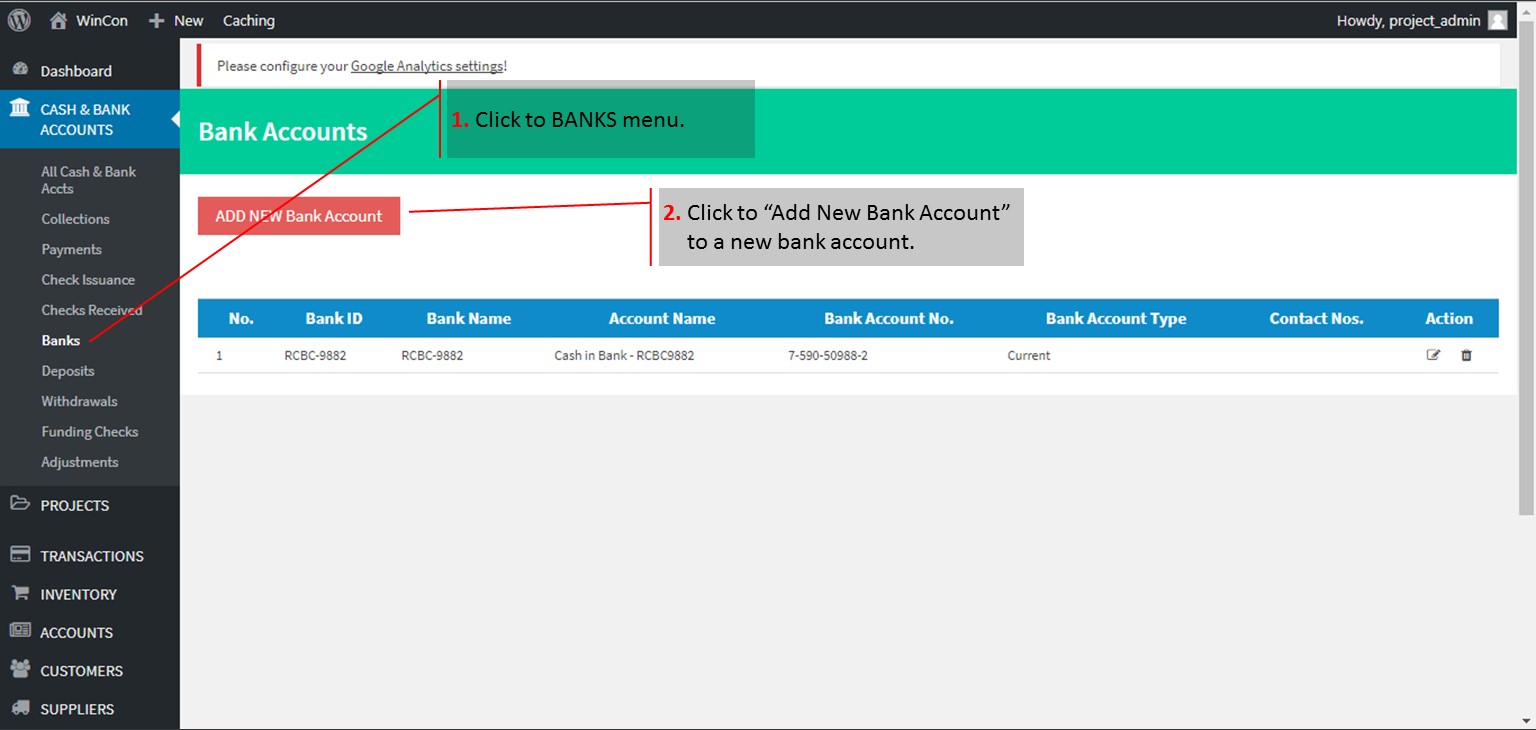
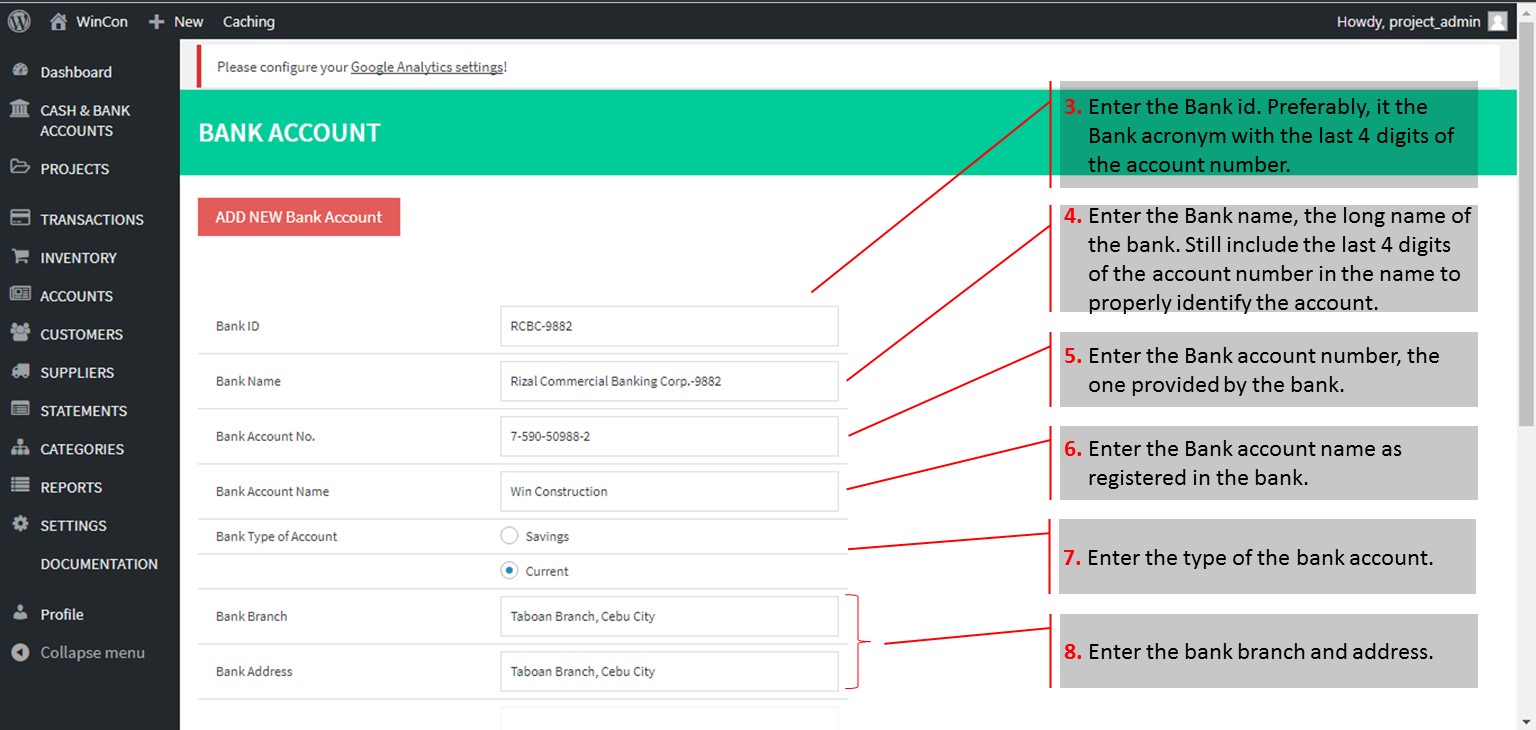
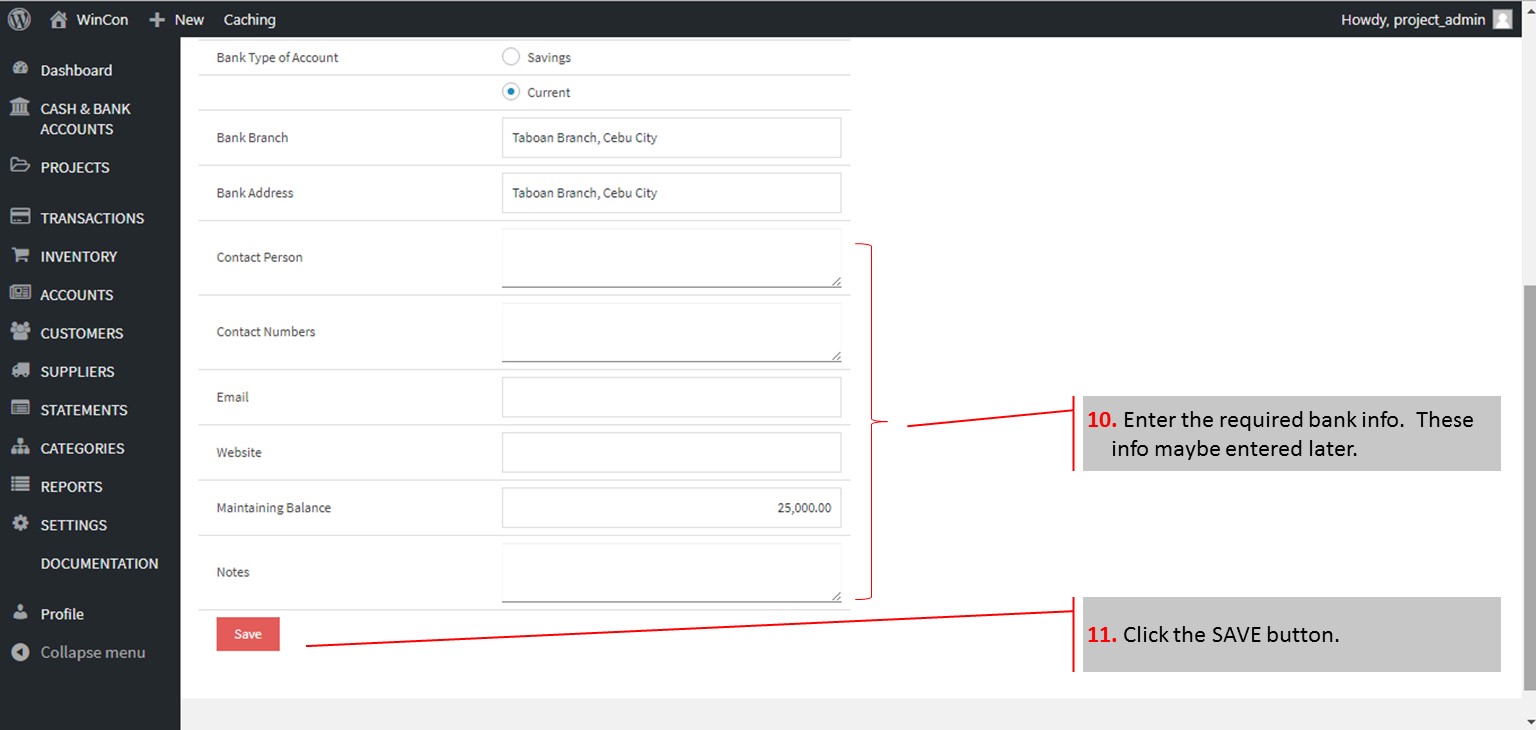
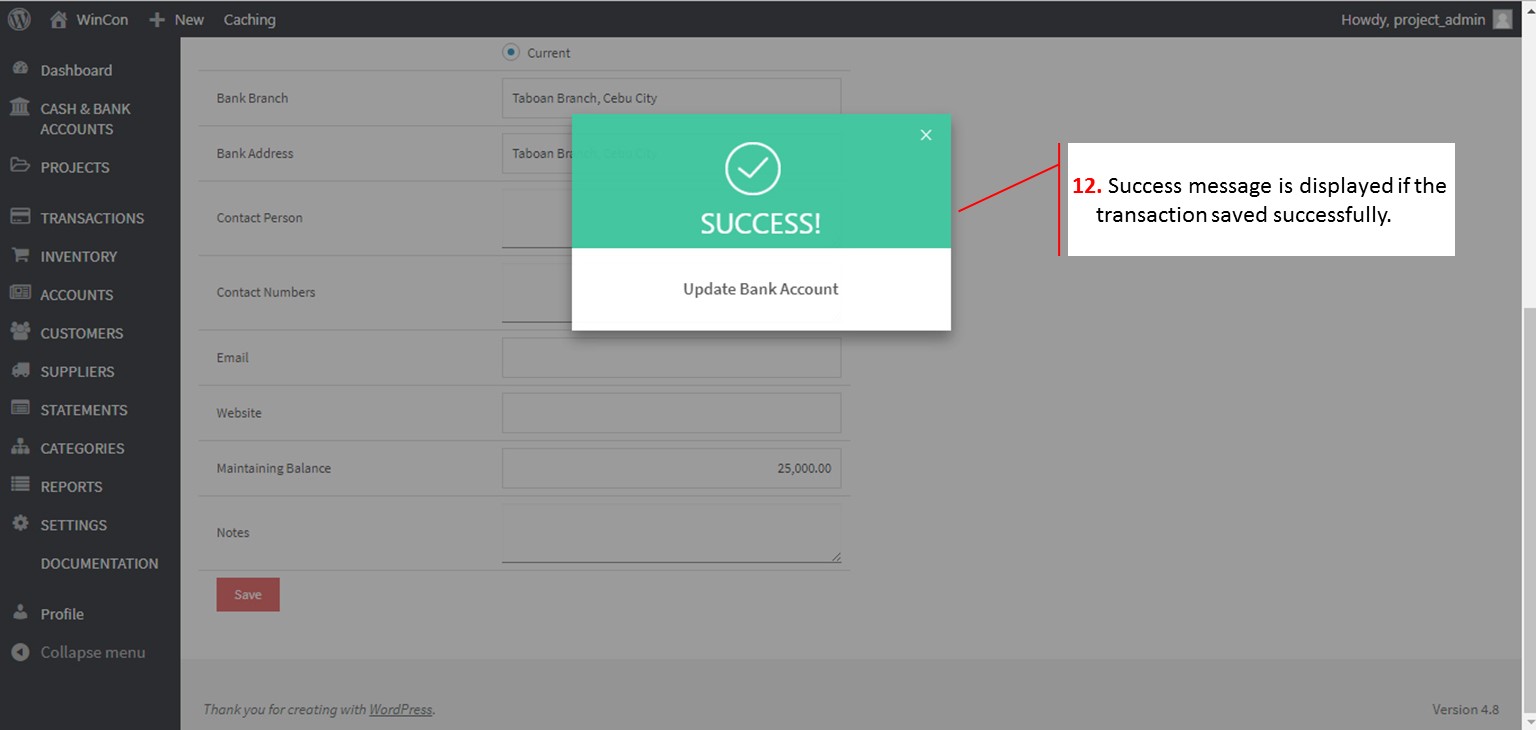
  • How to Setup the Bank Profile

    [et_pb_section bb_built=”1″ admin_label=”section” _builder_version=”3.0.49″ custom_padding=”10px|||”][et_pb_row admin_label=”row” background_position=”top_left” background_repeat=”repeat” background_size=”initial” _builder_version=”3.0.49″ background_position_1=”top_left” background_repeat_1=”no-repeat” background_position_2=”top_left” background_repeat_2=”no-repeat” custom_padding=”10px|||”][et_pb_column type=”3_4″][et_pb_post_title admin_label=”Post Title” _builder_version=”3.0.49″ title=”on” meta=”off” author=”on” date=”on” categories=”on” comments=”on” featured_image=”off” featured_placement=”below” parallax_method=”on” text_orientation=”left” text_color=”dark” text_background=”off” border_style=”solid” custom_margin=”40px|||” /][et_pb_text admin_label=”Text” _builder_version=”3.0.49″ background_layout=”light” text_orientation=”left” border_style=”solid”] [/et_pb_text][/et_pb_column][et_pb_column type=”1_4″][/et_pb_column][/et_pb_row][/et_pb_section]
  • How to Set Up and Record Bank Transactions

    [et_pb_section bb_built=”1″ admin_label=”section” _builder_version=”3.0.49″ custom_padding=”10px|||”][et_pb_row admin_label=”row” background_position=”top_left” background_repeat=”repeat” background_size=”initial” _builder_version=”3.0.49″ background_position_1=”top_left” background_repeat_1=”no-repeat” background_position_2=”top_left” background_repeat_2=”no-repeat” custom_padding=”10px|||”][et_pb_column type=”3_4″][et_pb_post_title admin_label=”Post Title” _builder_version=”3.0.49″ title=”on” meta=”off” author=”on” date=”on” categories=”on” comments=”on” featured_image=”off” featured_placement=”below” parallax_method=”on” text_orientation=”left” text_color=”dark” text_background=”off” border_style=”solid” custom_margin=”40px|||” /][et_pb_text admin_label=”Cash and Bank account” _builder_version=”3.0.49″ background_layout=”light” text_orientation=”left” border_style=”solid”]

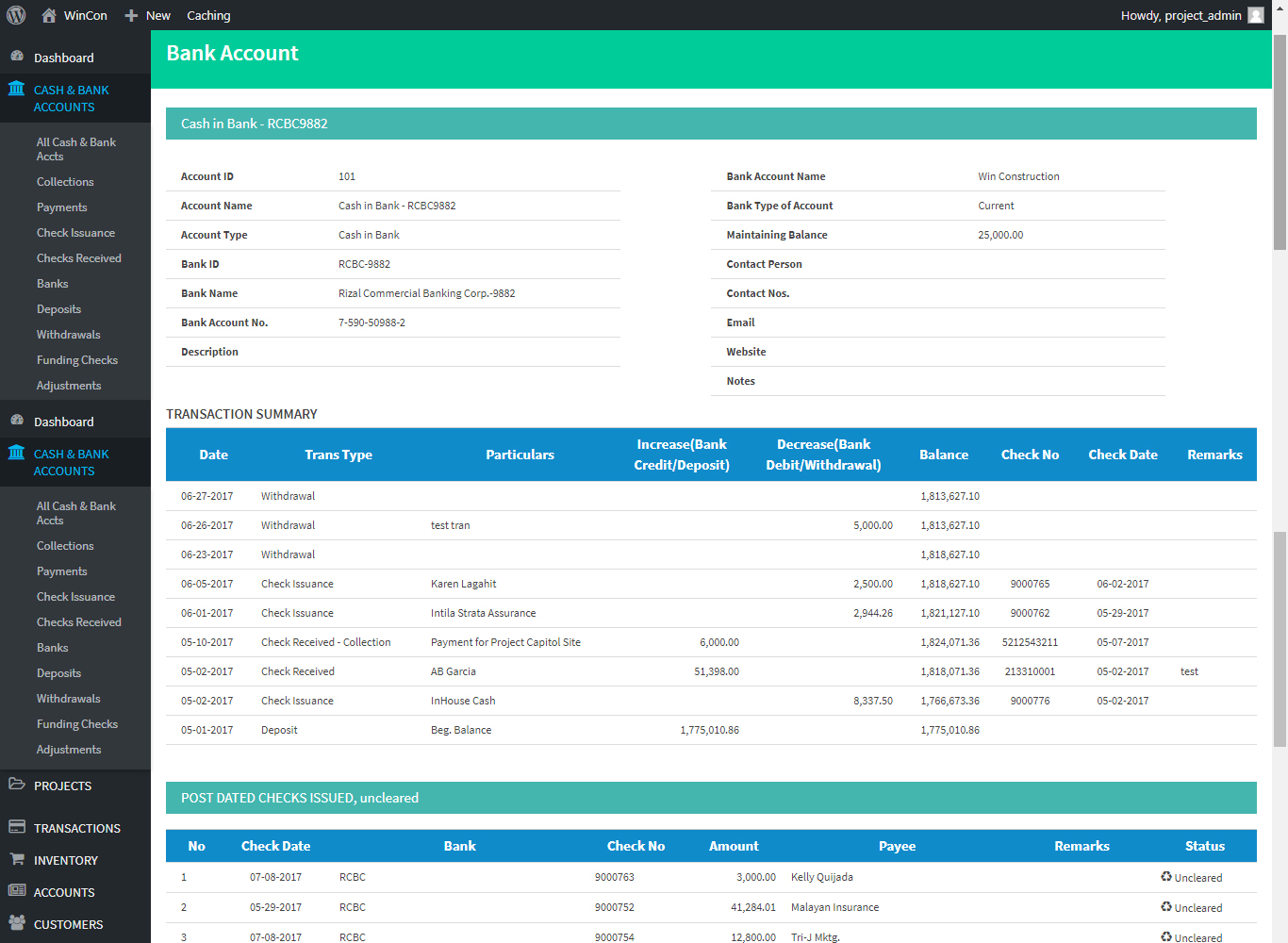
    All the bank transactions can be monitored in the “Cash and Bank Account” menu. Click the specific bank account you want to monitor and view the transactions (see below).

    Recent transactions are on top and below the transactions monitor is the listing of uncleared checks issued for this specific bank account. Click the Status button and change status to “Cleared” if the check really cleared with the bank.
    [/et_pb_text][et_pb_toggle admin_label=”1. How to setup the bank account profile (Toggle)” _builder_version=”3.0.49″ title=”1. How to Setup the Bank Account Profile” open=”off” open_toggle_text_color=”#34b59f” border_style=”solid” background_position=”top_left” background_repeat=”repeat” background_size=”initial” icon_color=”#ef5555″ closed_toggle_text_color=”#070707″ title_font_size=”20″ use_border_color=”on” border_color=”#34b59f”]

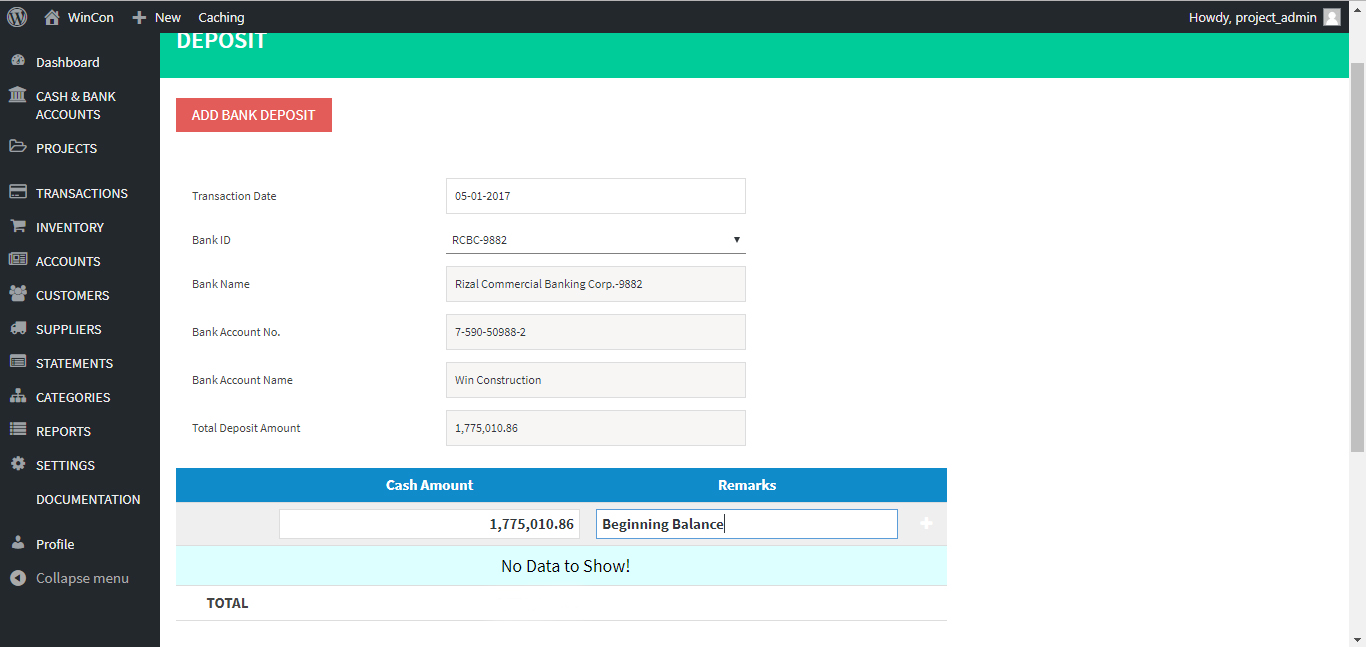
    Click to zoom the slideshow and view the procedures.
    [/et_pb_toggle][et_pb_toggle admin_label=”2. Setup the Beginning Balance (Toggle)” _builder_version=”3.0.49″ title=”2. Setup the Beginning Balance” open=”off” open_toggle_text_color=”#34b59f” border_style=”solid” background_position=”top_left” background_repeat=”repeat” background_size=”initial” icon_color=”#ef5555″ closed_toggle_text_color=”#070707″ title_font_size=”20″ use_border_color=”on” border_color=”#34b59f”]
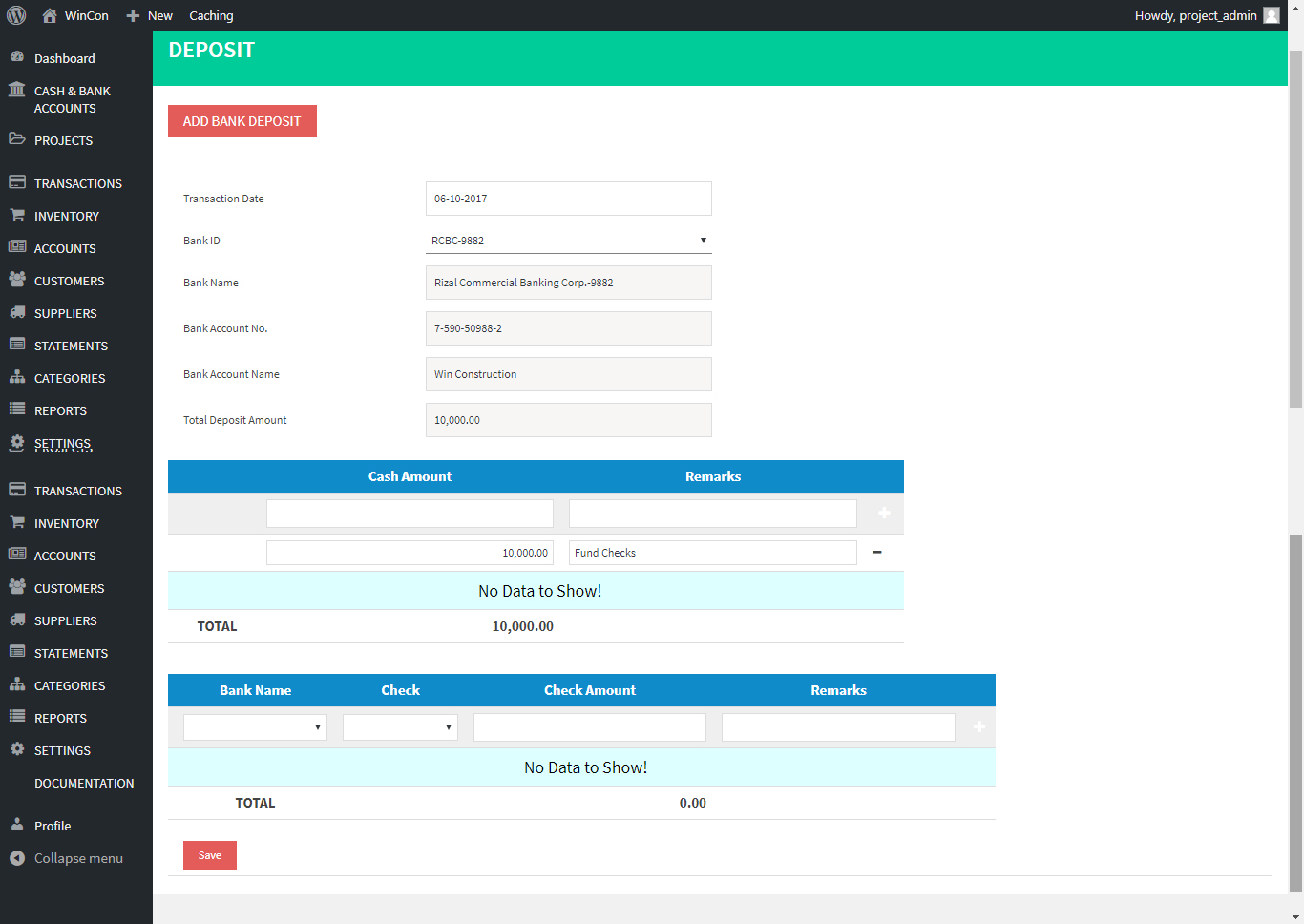
    • Go to Deposit menu
    • Click “Add New Deposit”.
    • Choose the Bank ID. The bank details automatically fills up the fields below.
    • Enter the amount setup as beginning balance in the Cash section of the deposit menu.
    • Enter “Beg. Balance” in the Remarks section.
    • Click SAVE button.


    [/et_pb_toggle][et_pb_toggle admin_label=”3. Post Bank Deposits (Toggle)” _builder_version=”3.0.49″ title=”3. Post Cash and/or Check Deposits” open=”off” open_toggle_text_color=”#34b59f” border_style=”solid” background_position=”top_left” background_repeat=”repeat” background_size=”initial” icon_color=”#ef5555″ closed_toggle_text_color=”#070707″ title_font_size=”20″ use_border_color=”on” border_color=”#34b59f”]
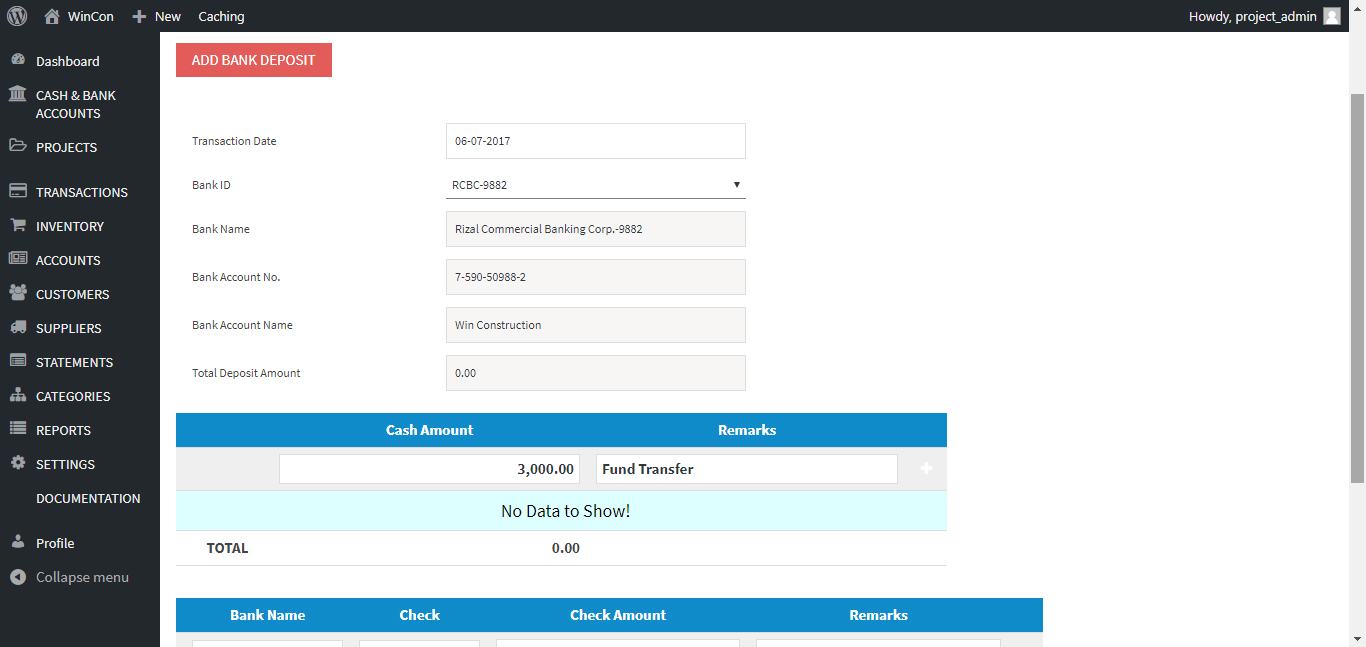
      • Go to Deposit menu.
      • Click “Add New Deposit”.
      • For cash deposit, enter the amount of cash deposit in the Cash Amount section of the deposit menu and enter the Notes/Remarks in the Remarks section.
      • For check deposit, choose the bank name of the check. The list of check numbers of undeposited checks received from the clients will then be displayed.
      • Choose the specific check number to be deposited. The corresponding amount of the check will then be displayed.
      • Enter the “Remarks” related to this check, if any in the Remarks section.
      • If more than one (1) customer check is to be deposited, click the + to add another line for the entry of new check deposit.
      • Then enter the check details.
      • Please note that the total deposit amount is total of cash and check deposit.
      • Click SAVE button.

    [/et_pb_toggle][et_pb_toggle admin_label=”4. Post Fund Transfers (Toggle)” _builder_version=”3.0.49″ title=”4. Post Fund Transfers” open=”off” open_toggle_text_color=”#34b59f” border_style=”solid” background_position=”top_left” background_repeat=”repeat” background_size=”initial” icon_color=”#ef5555″ closed_toggle_text_color=”#070707″ title_font_size=”20″ use_border_color=”on” border_color=”#34b59f”]

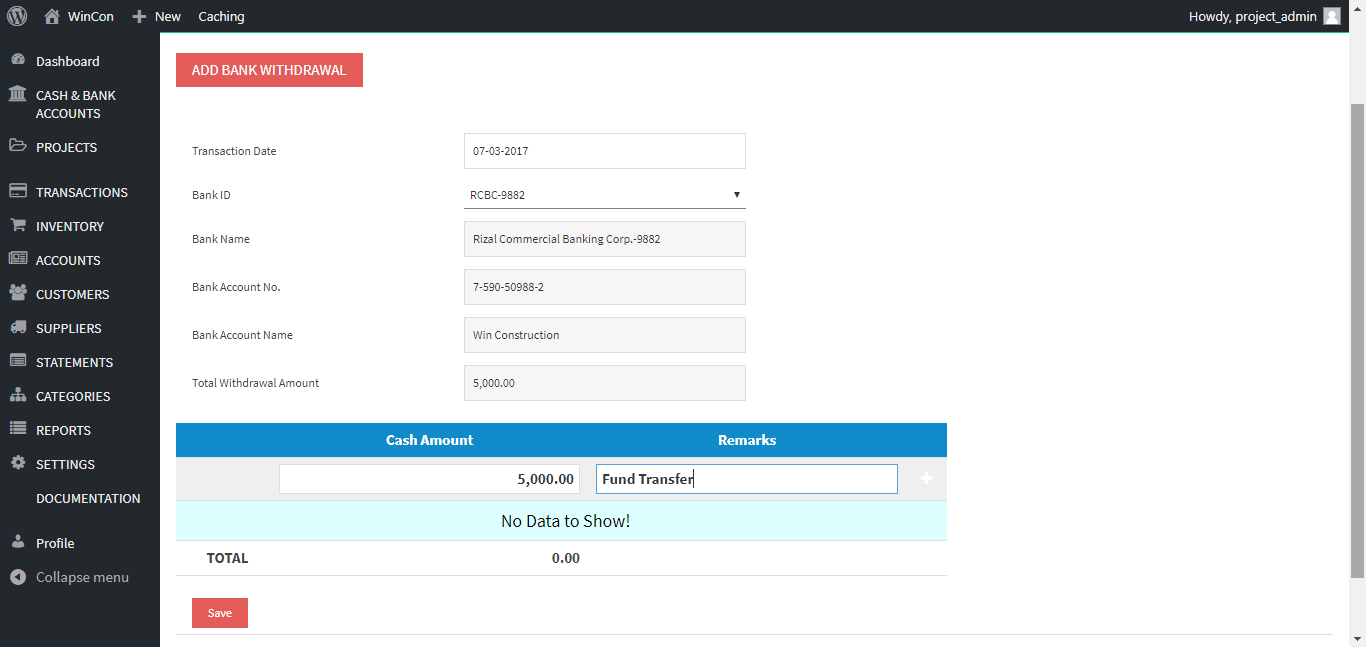
    Fund transfers are either a withdrawal/debit or deposit/credit to the bank account.

    • If it is a deposit/credit to the bank account, use the “Deposit” menu and enter the amount in the Cash Amount section. Then enter “Fund Transfer” as Remarks.

    • If it is a withdrawal/debit, use the “Withdrawal” menu enter the amount in the Cash Amount section. Then enter “Fund Transfer” as Remarks.


    [/et_pb_toggle][et_pb_toggle admin_label=”5. Post Check Issuances (Toggle)” _builder_version=”3.0.49″ title=”5. Post Check Issuances” open=”off” open_toggle_text_color=”#34b59f” border_style=”solid” background_position=”top_left” background_repeat=”repeat” background_size=”initial” icon_color=”#ef5555″ closed_toggle_text_color=”#070707″ title_font_size=”20″ use_border_color=”on” border_color=”#34b59f”]
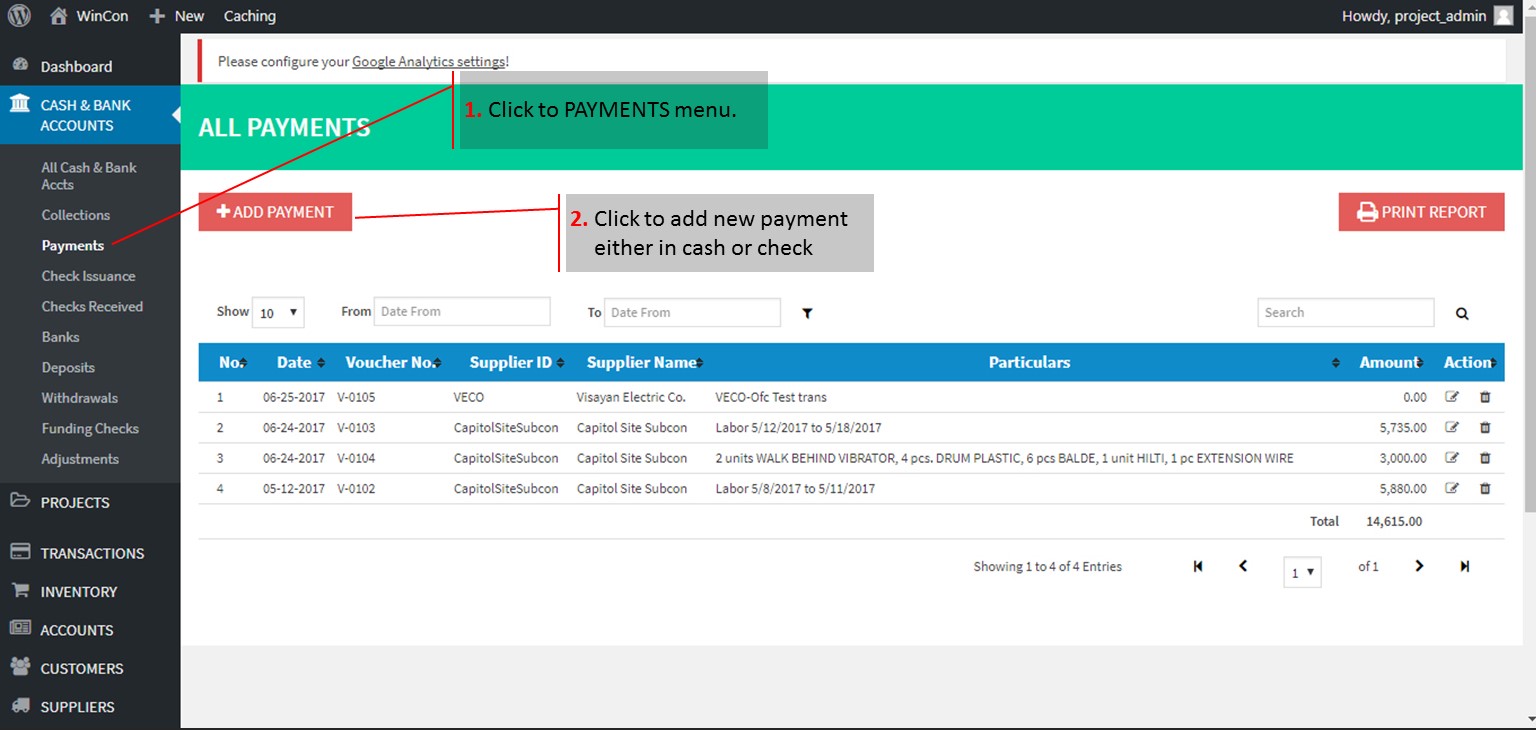
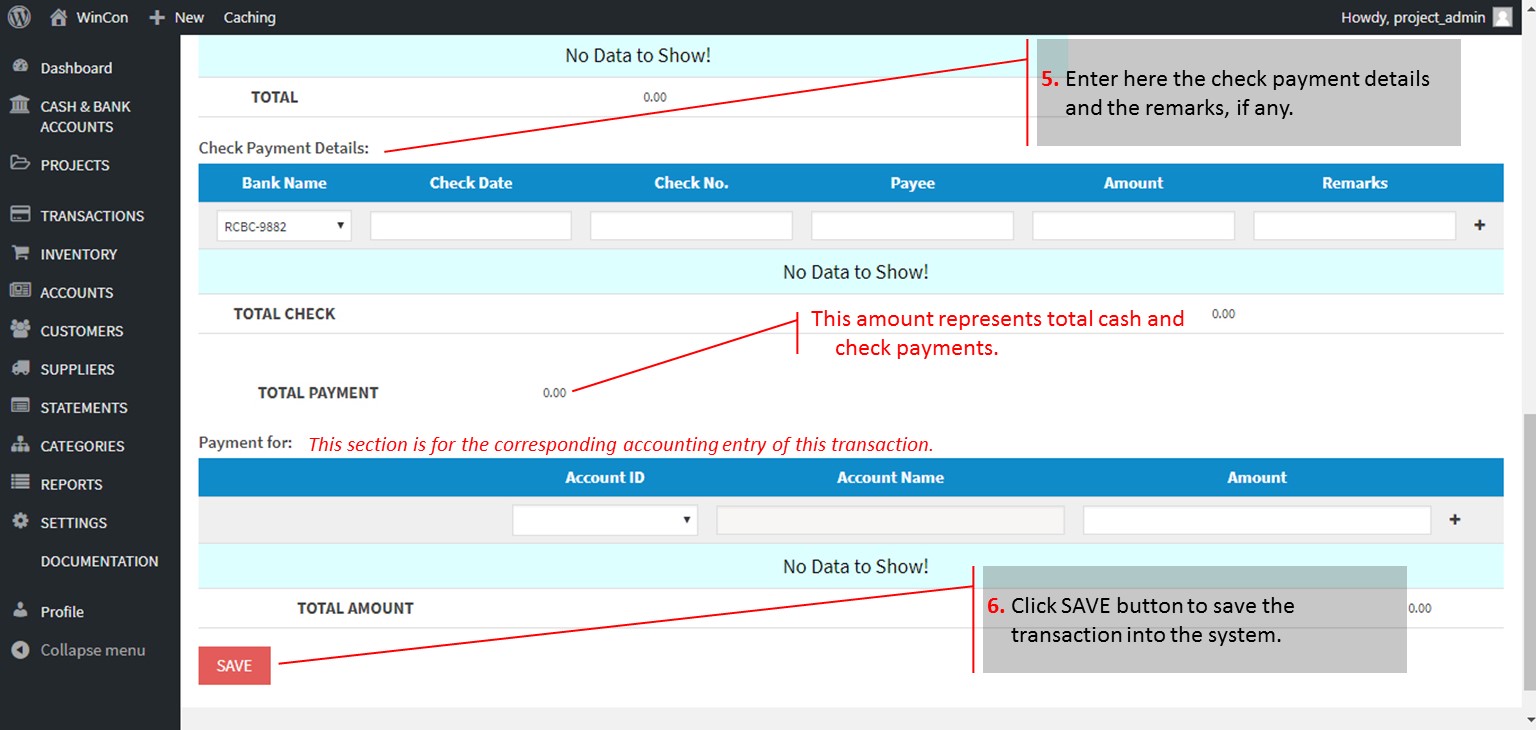
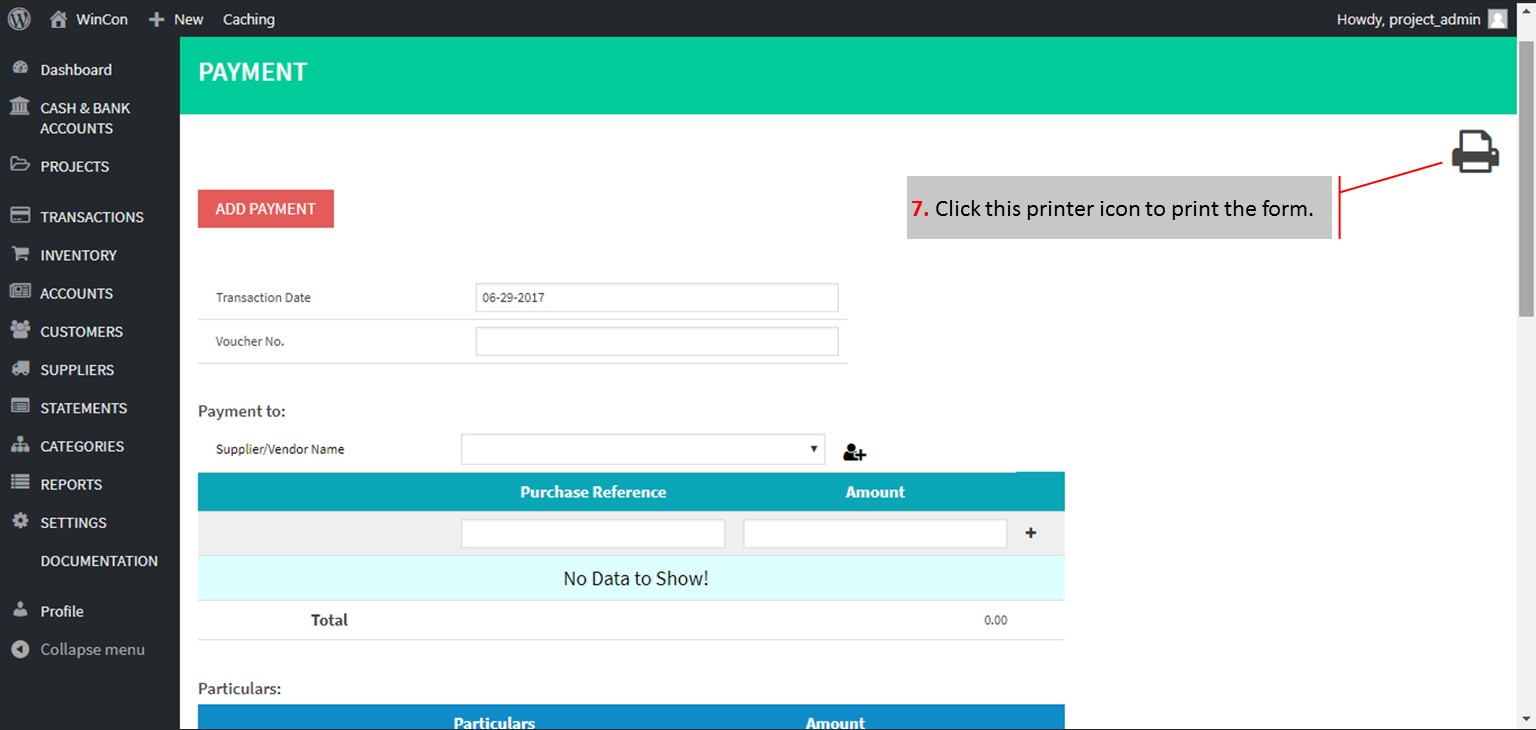
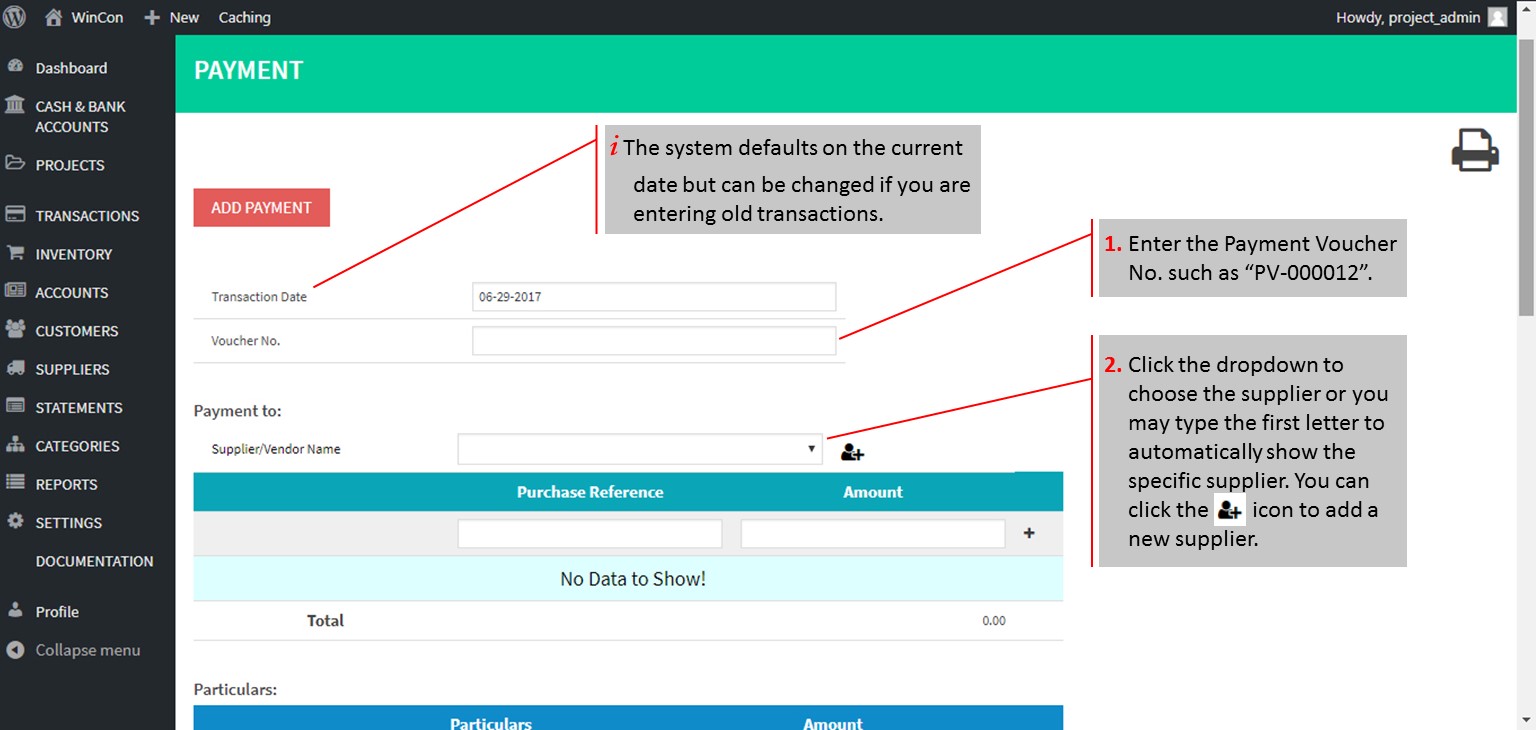
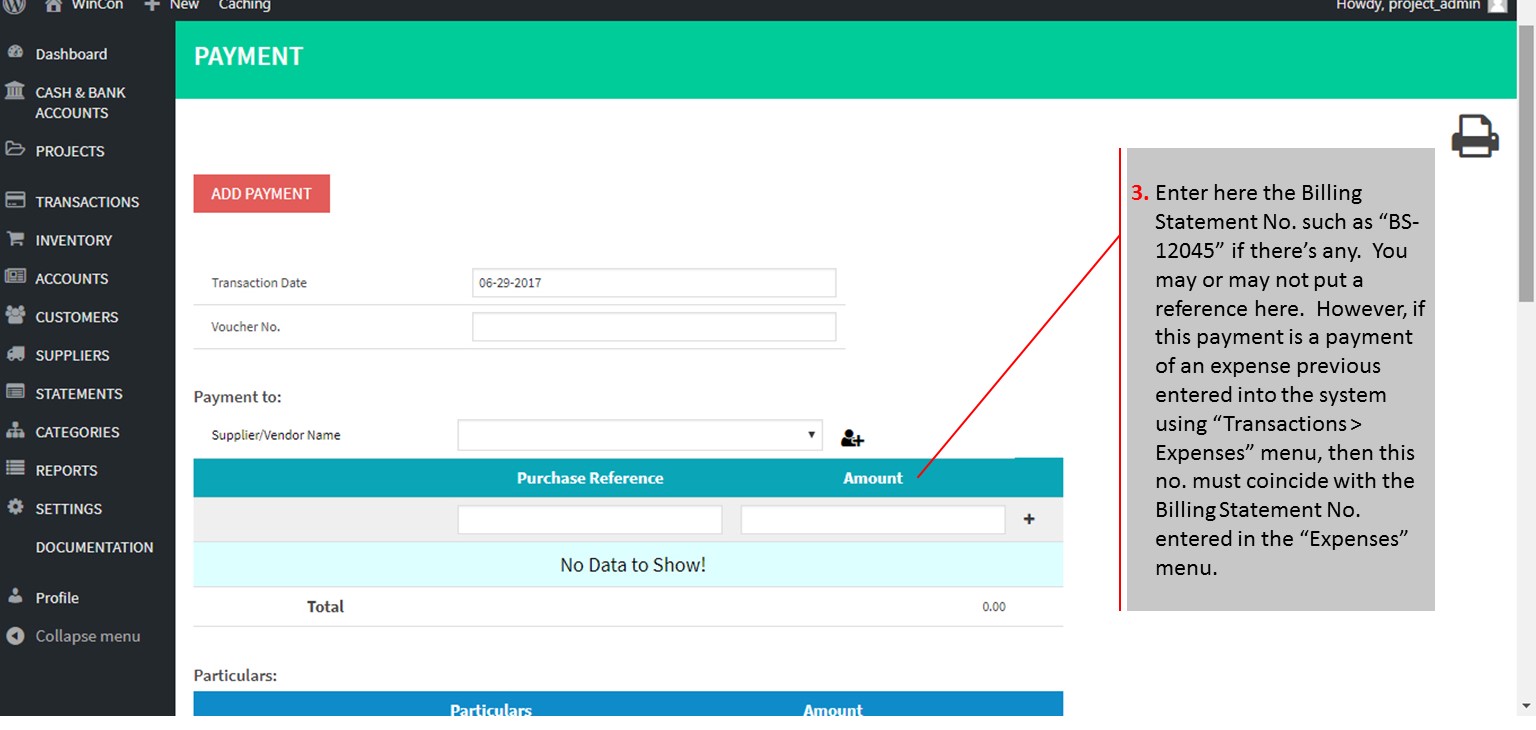
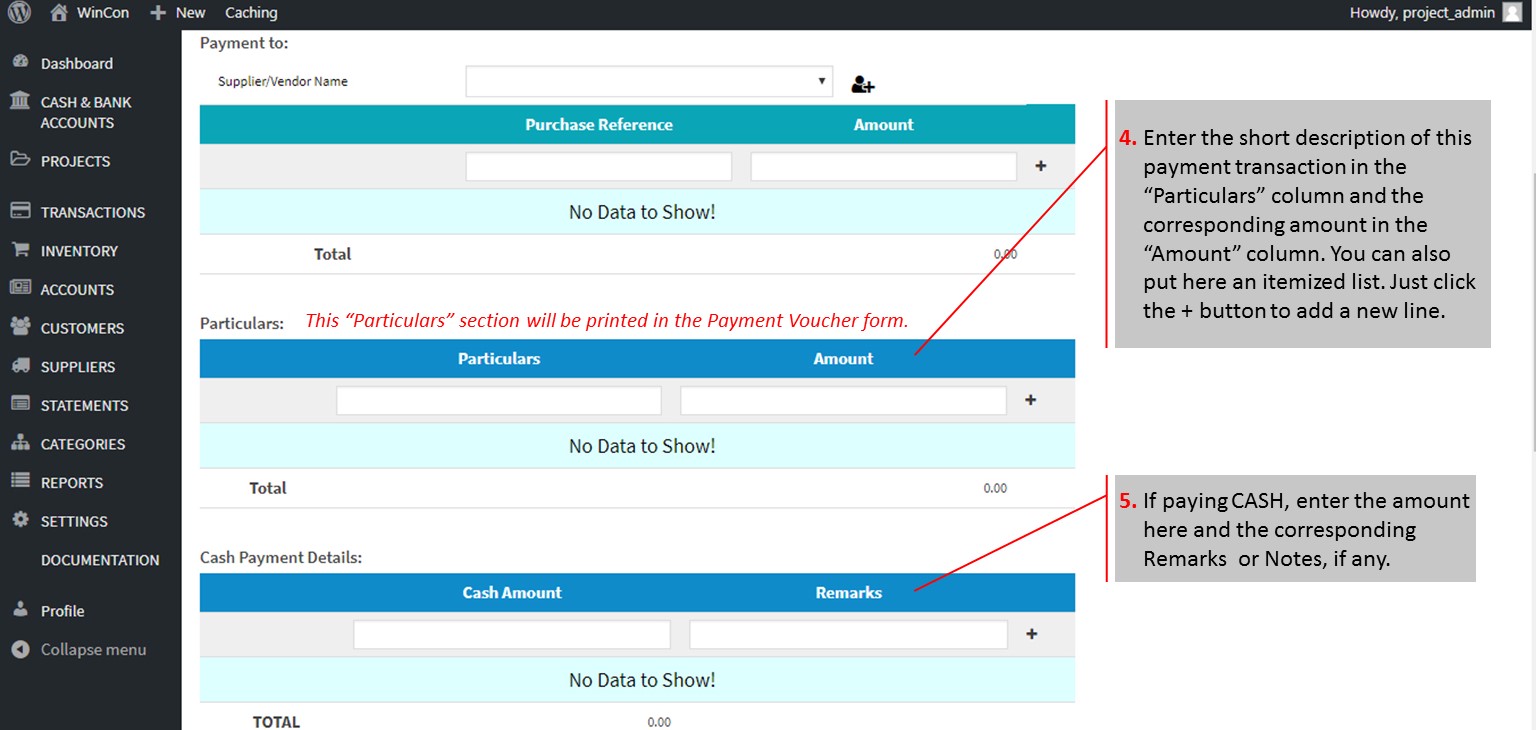
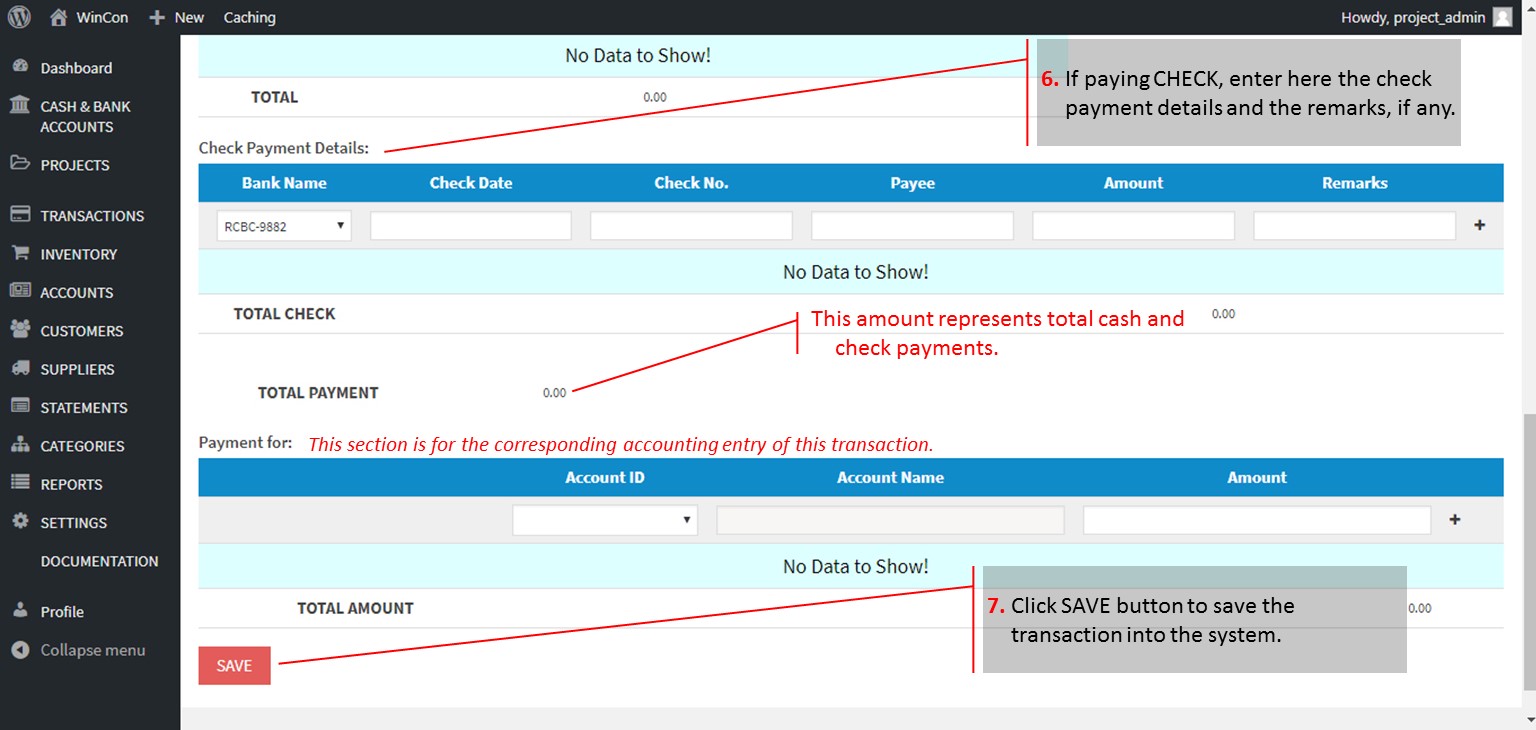
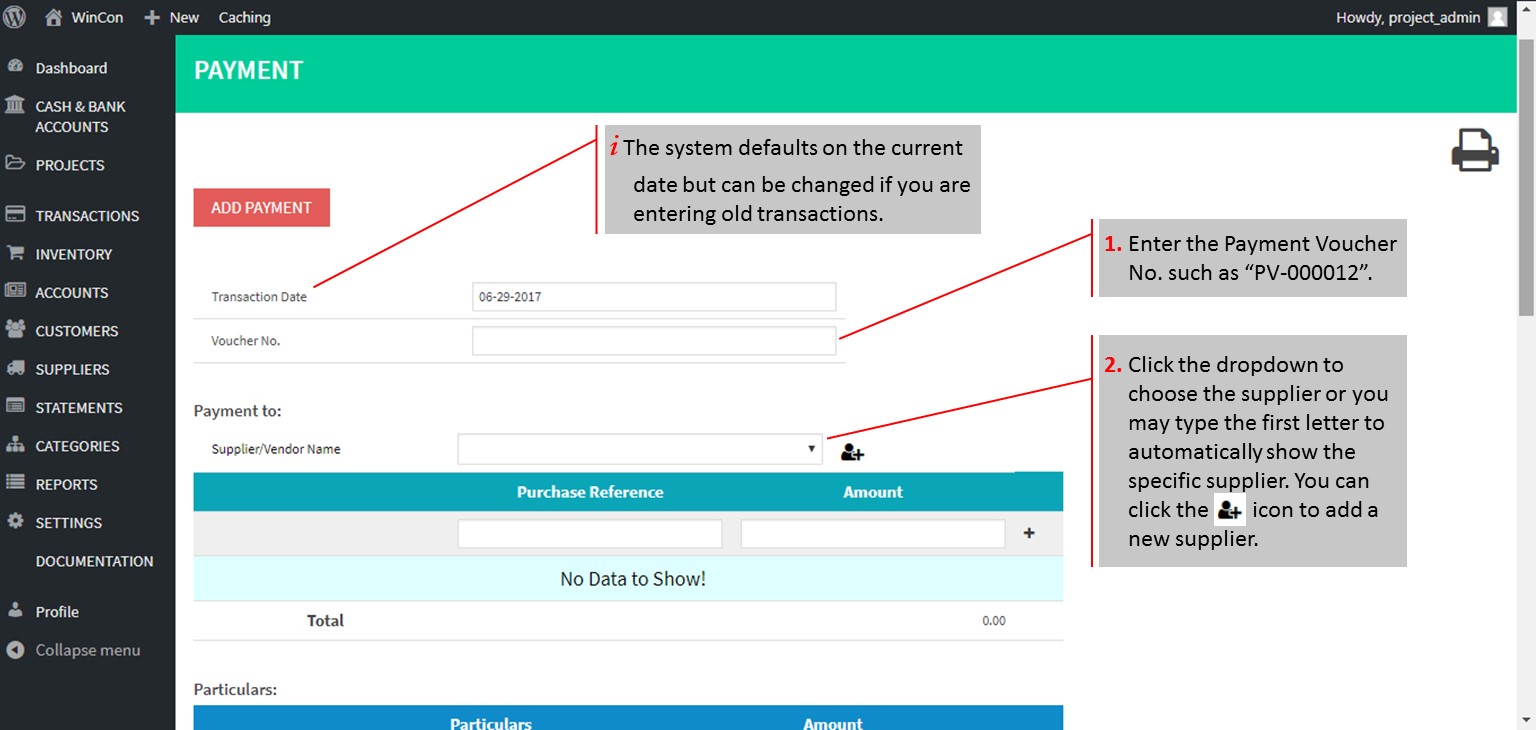
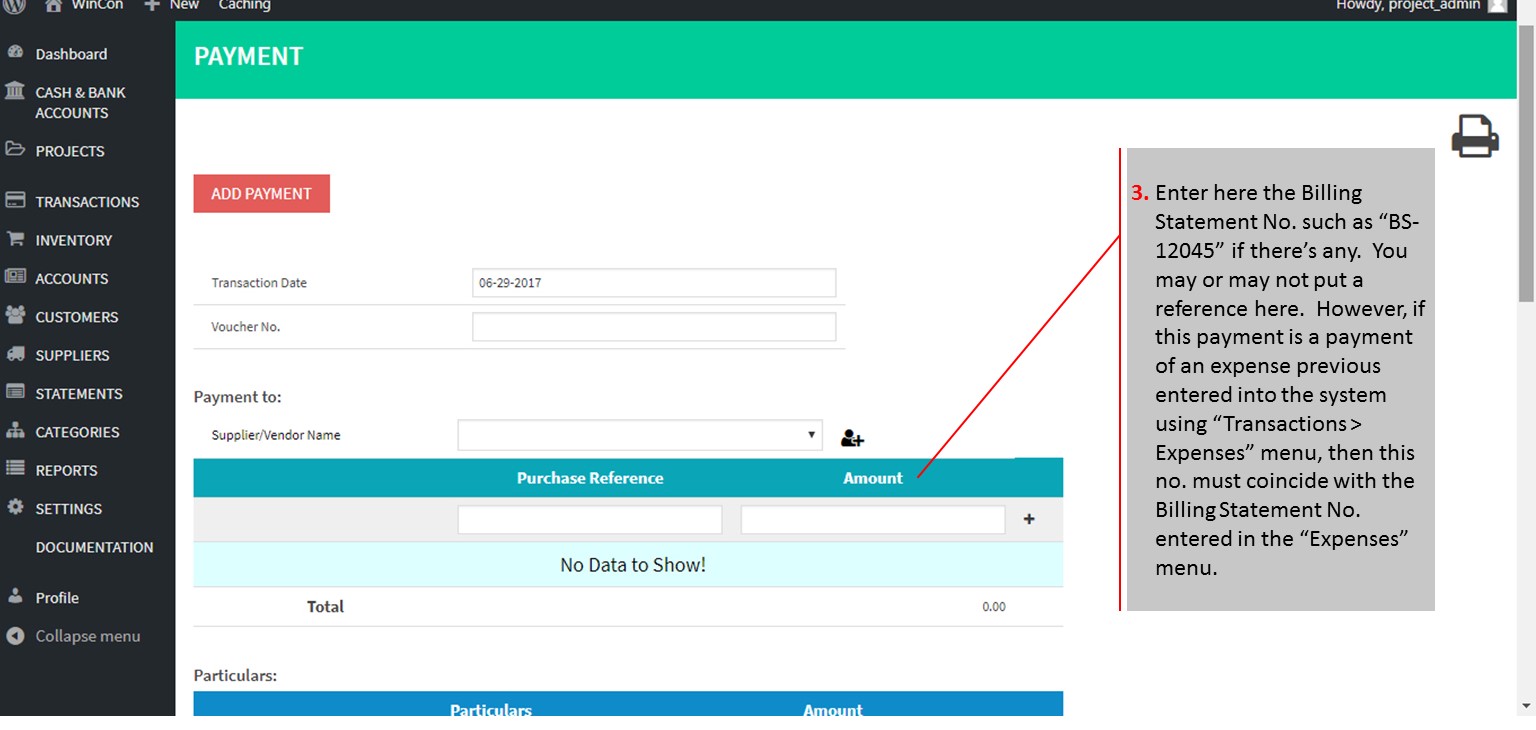
    All check issuances must be done thru the PAYMENTS menu. A Payment Voucher form can be printed once the transaction is saved.
    Here’s the procedure on how to post check payments into the system: Click to zoom the slideshow.

    Check Payments entered in the Payment menu are also directly posted in the Checks Issuance menu.

    Download the sample printable form of the Payment Voucher for printing. The sample form was set to match the print settings of the system. Put in the logo of your company, address and maybe some foooter content and have it printed with your printing press prenumbered.


    [/et_pb_toggle][et_pb_toggle admin_label=”5. Post Check Encashments (Toggle)” _builder_version=”3.0.49″ title=”5. Post Check Encashments” open=”off” open_toggle_text_color=”#34b59f” border_style=”solid” background_position=”top_left” background_repeat=”repeat” background_size=”initial” icon_color=”#ef5555″ closed_toggle_text_color=”#070707″ title_font_size=”20″ use_border_color=”on” border_color=”#34b59f”]
    Click to zoom the slideshow and view the procedures.

    [/et_pb_toggle][et_pb_toggle admin_label=”6. Post Bank Withdrawals (Toggle)” _builder_version=”3.0.49″ title=”6. Post Bank Withdrawals” open=”off” open_toggle_text_color=”#34b59f” border_style=”solid” background_position=”top_left” background_repeat=”repeat” background_size=”initial” icon_color=”#ef5555″ closed_toggle_text_color=”#070707″ title_font_size=”20″ use_border_color=”on” border_color=”#34b59f”]
    Click to zoom the slideshow and view the procedures.

    [/et_pb_toggle][et_pb_toggle admin_label=”7. Post Other Bank Transactions (Toggle)” _builder_version=”3.0.49″ title=”7. Post Other Bank Transactions” open=”off” open_toggle_text_color=”#34b59f” border_style=”solid” background_position=”top_left” background_repeat=”repeat” background_size=”initial” icon_color=”#ef5555″ closed_toggle_text_color=”#070707″ title_font_size=”20″ use_border_color=”on” border_color=”#34b59f”]
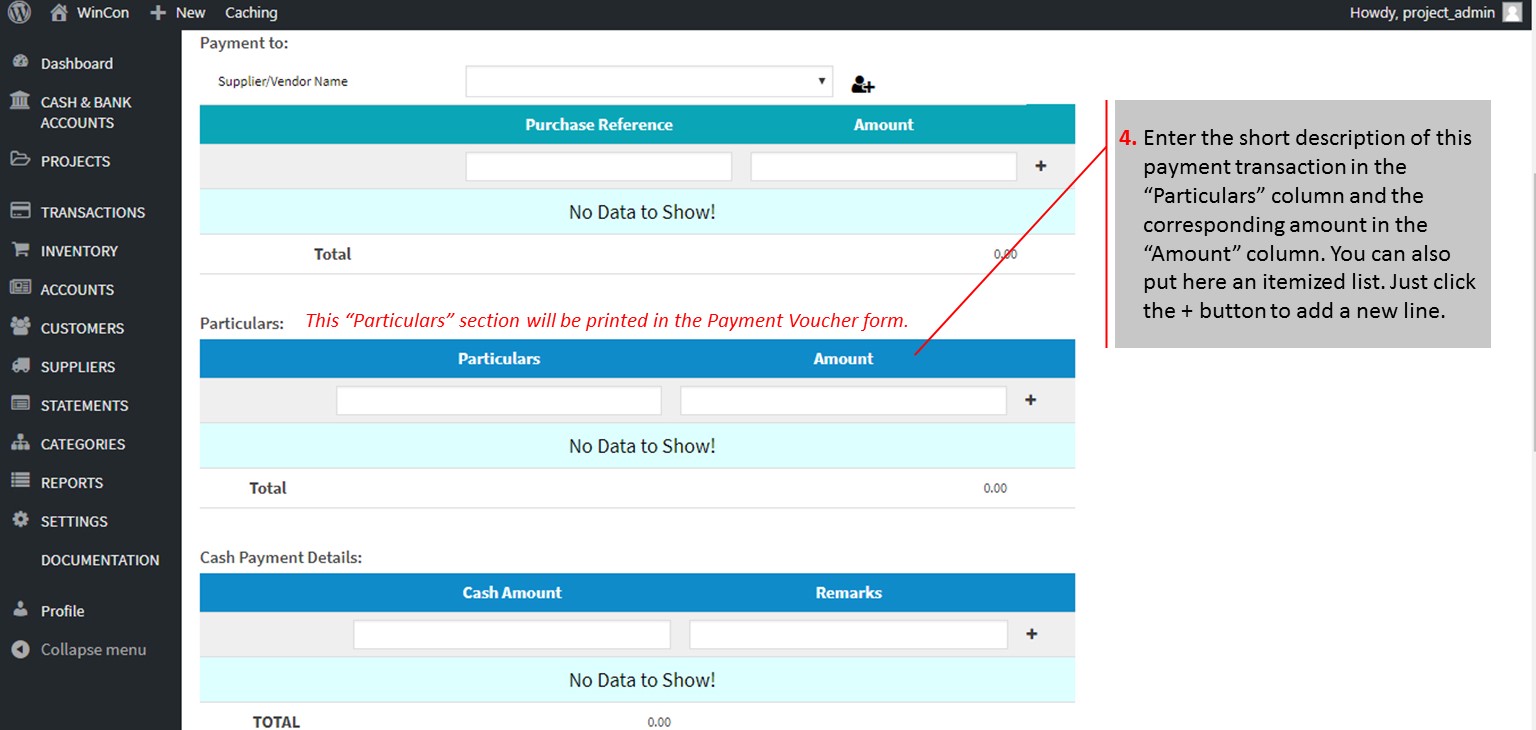
    Click to zoom the slideshow and view the procedures.

    [/et_pb_toggle][et_pb_text admin_label=”Text” _builder_version=”3.0.49″ background_layout=”light” text_orientation=”left” border_style=”solid” background_position=”top_left” background_repeat=”repeat” background_size=”initial”]
    1. Setup the Bank Profile

    How to Setup a Bank Profile

    1. Setup the beginning balance

    Go to Deposit menu

    Click “Add New Deposit”.

    Enter the amount setup as beginning balance in the Cash section of the deposit menu.

    Enter “Beg. Balance” in the Remarks section.

    Click SAVE button.


    1. How to post Check encashment?

    Record first the Check Issuance by:

    Go to Check Issuance menu.

    Click the “Add a New Check Issuance” button

    Enter Check details.

    Click SAVE button.

    Once the new check issuance is saved, go to “All Check Issuances”.

    Find the check for encashment using the check details.

    Set the check to “Cleared” by clicking on the Uncleared “Status” and click the Cleared button on the popup dialog, and the indicate the date the check was encashed or cleared.


    1. How to post Check Issuances or Payments

    Click this link: How to post Payment


    1. How to post Cash/Check Deposit

    Go to Deposit menu

    Click “Add New Deposit”.

    Enter the amount of cash deposit in the Cash section of the deposit menu or check amount In the Check Section.

    Enter “notes or remarks” if any, in the Remarks section.

    Click SAVE button.


    1. How to post Withdrawal

    The Withdrawal menu is for Cash withdrawal only. This menu is good for Savings bank account.

    Withdrawal on checking accounts is done via a check issuance.

    When this happens, go to Step 4 and follow instructions on “How to post check issuance or payments.”


    [/et_pb_text][/et_pb_column][et_pb_column type=”1_4″][/et_pb_column][/et_pb_row][/et_pb_section]
  • How to post Deposit

    [et_pb_section bb_built=”1″ admin_label=”section” _builder_version=”3.0.49″ custom_padding=”10px|||”][et_pb_row admin_label=”row” background_position=”top_left” background_repeat=”repeat” background_size=”initial” _builder_version=”3.0.49″ background_position_1=”top_left” background_repeat_1=”no-repeat” background_position_2=”top_left” background_repeat_2=”no-repeat” custom_padding=”10px|||”][et_pb_column type=”3_4″][et_pb_post_title admin_label=”Post Title” _builder_version=”3.0.49″ title=”on” meta=”off” author=”on” date=”on” categories=”on” comments=”on” featured_image=”off” featured_placement=”below” parallax_method=”on” text_orientation=”left” text_color=”dark” text_background=”off” border_style=”solid” custom_margin=”40px|||” /][et_pb_text admin_label=”Text” _builder_version=”3.0.49″ background_layout=”light” text_orientation=”left” border_style=”solid”]

    Deposits may be in CASH or in CHECK.

    All checks for deposit must have been encoded as “Check Received” before in can posted as “Deposit” in the system. The checks received can be posted in the system via the Transactions > Sales menu or via Cash and Bank Accounts > Checks Received.


    [/et_pb_text][/et_pb_column][et_pb_column type=”1_4″][/et_pb_column][/et_pb_row][/et_pb_section]
  • The Payments Menu

    [et_pb_section bb_built=”1″ admin_label=”section” _builder_version=”3.0.49″ custom_padding=”10px|||”][et_pb_row admin_label=”row” background_position=”top_left” background_repeat=”repeat” background_size=”initial” _builder_version=”3.0.49″ background_position_1=”top_left” background_repeat_1=”no-repeat” background_position_2=”top_left” background_repeat_2=”no-repeat” custom_padding=”10px|||”][et_pb_column type=”3_4″][et_pb_post_title admin_label=”Post Title” _builder_version=”3.0.49″ title=”on” meta=”off” author=”on” date=”on” categories=”on” comments=”on” featured_image=”off” featured_placement=”below” parallax_method=”on” text_orientation=”left” text_color=”dark” text_background=”off” border_style=”solid” custom_margin=”40px|||” /][et_pb_tabs admin_label=”Tabs” _builder_version=”3.0.49″ inactive_tab_background_color=”#5f5f5f” border_style=”solid” active_tab_background_color=”#e35c59″ tab_font_size=”15″ tab_text_color=”#ffffff” tab_line_height=”2em”] [et_pb_tab title=”How to Post Payments” use_background_color_gradient=”off” background_color_gradient_start=”#2b87da” background_color_gradient_end=”#29c4a9″ background_color_gradient_type=”linear” background_color_gradient_direction=”180deg” background_color_gradient_direction_radial=”center” background_color_gradient_start_position=”0%” background_color_gradient_end_position=”100%” parallax=”off” parallax_method=”on” background_size=”cover” background_position=”center” background_repeat=”no-repeat” background_blend=”normal” allow_player_pause=”off” tab_font_select=”default” tab_font=”||||” body_font_select=”default” body_font=”||||” body_line_height=”2em” body_line_height_tablet=”2em” body_line_height_phone=”2em”]

    How to Post Payments

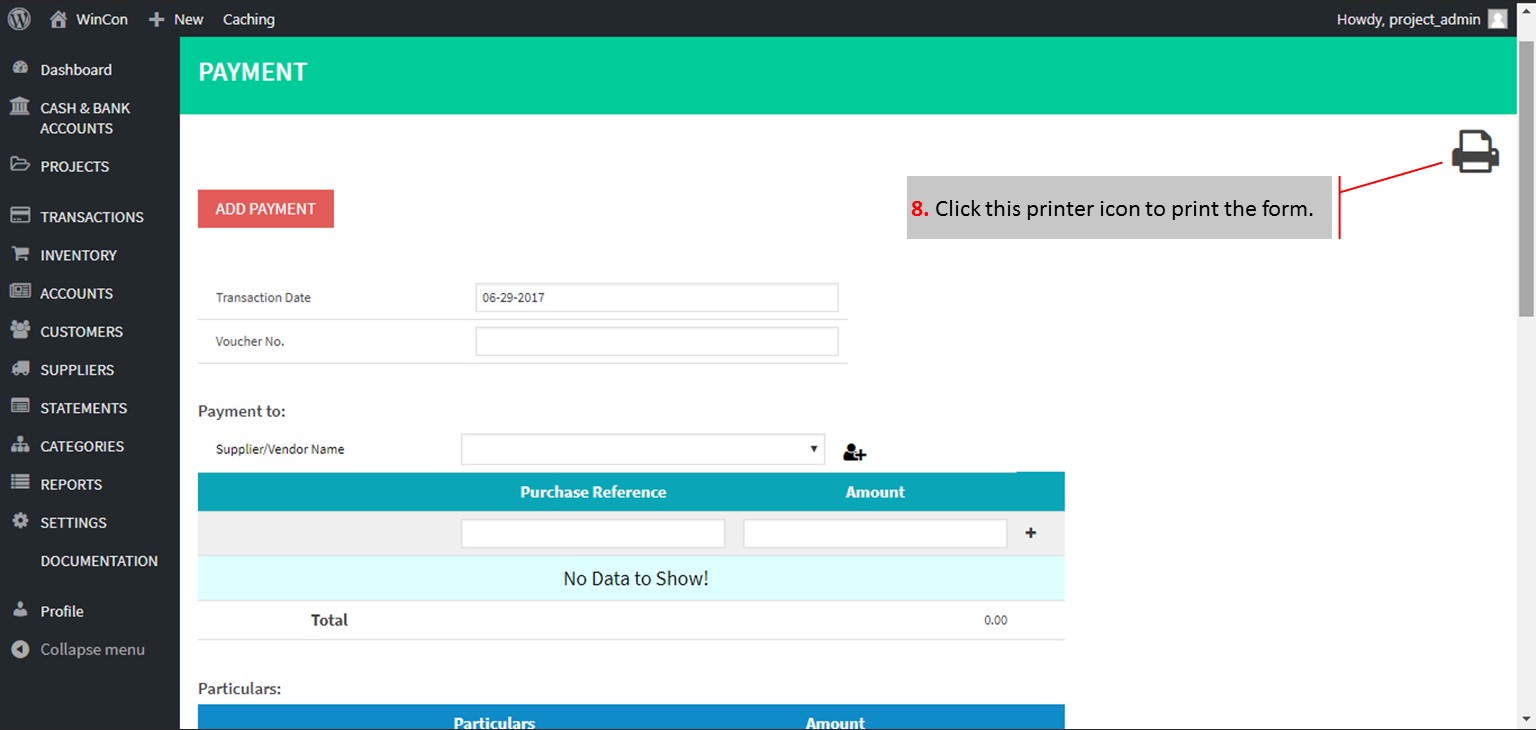
    All payments must be done thru the PAYMENTS menu and it can be done in cash or in check. A Payment Voucher form can be printed once the transaction is saved.

    Here’s the procedure on how to post payment into the system:  Click to zoom the slideshow.
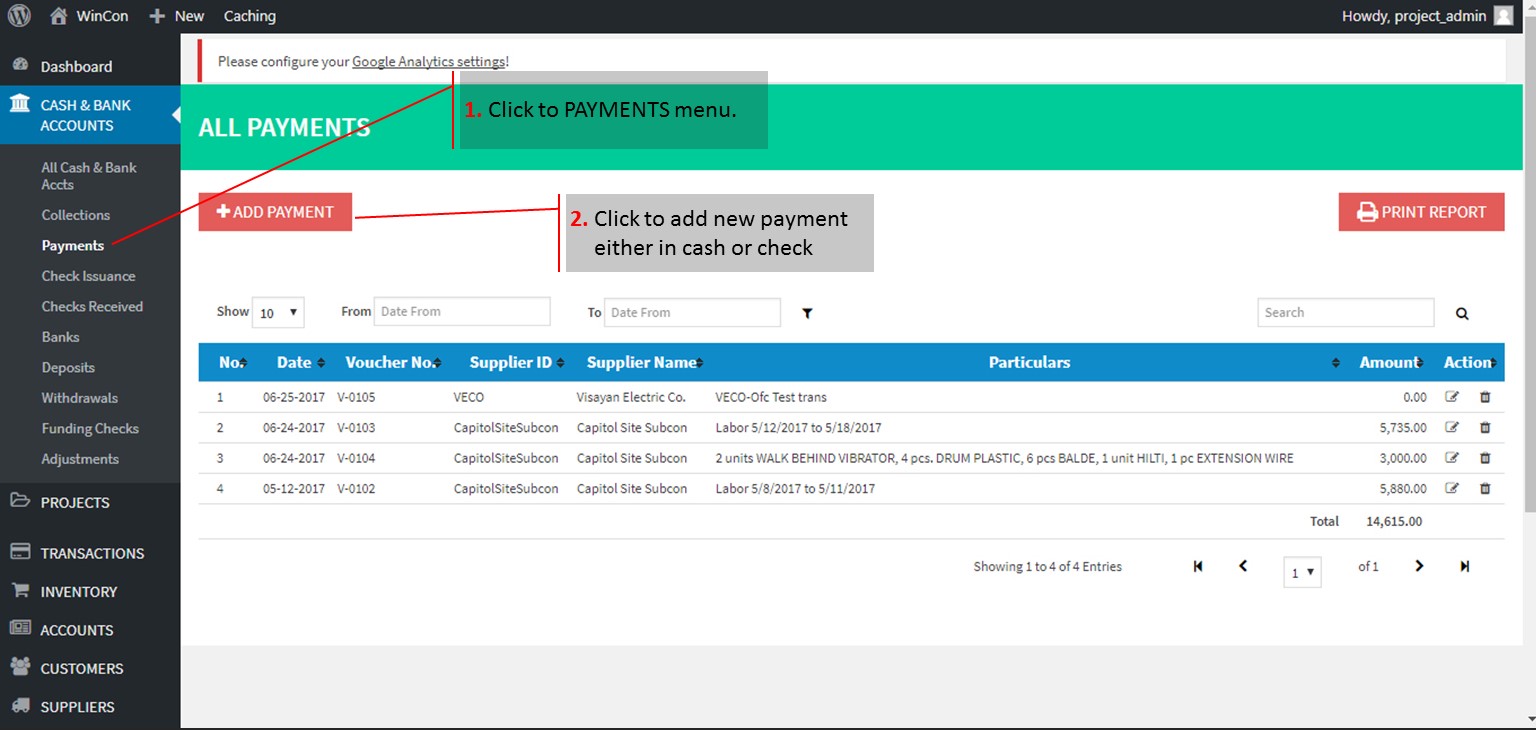


    Check Payments entered in the Payment menu are directly posted in the Checks Issuance menu.
    Download the sample printable form of the Payment Voucher for printing. The sample form was set to match the print settings of the system. Put in the logo of your company, address and maybe some foooter content and have it printed with your printing press prenumbered.


    [/et_pb_tab][et_pb_tab title=”How to Print Payment Reports” use_background_color_gradient=”off” background_color_gradient_start=”#2b87da” background_color_gradient_end=”#29c4a9″ background_color_gradient_type=”linear” background_color_gradient_direction=”180deg” background_color_gradient_direction_radial=”center” background_color_gradient_start_position=”0%” background_color_gradient_end_position=”100%” parallax=”off” parallax_method=”on” background_size=”cover” background_position=”center” background_repeat=”no-repeat” background_blend=”normal” allow_player_pause=”off” tab_font_select=”default” tab_font=”||||” body_font_select=”default” body_font=”||||” body_line_height=”2em” body_line_height_tablet=”2em” body_line_height_phone=”2em”]
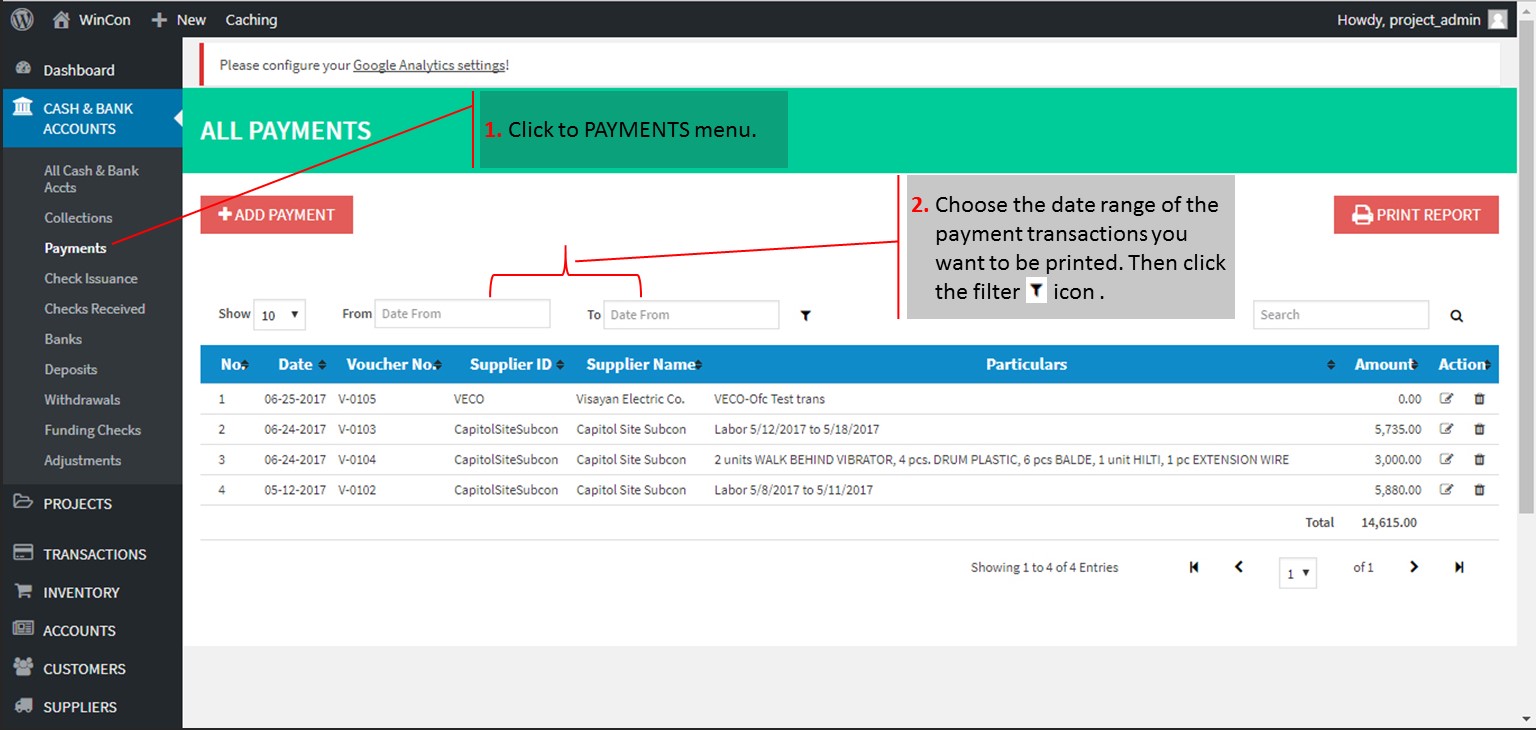
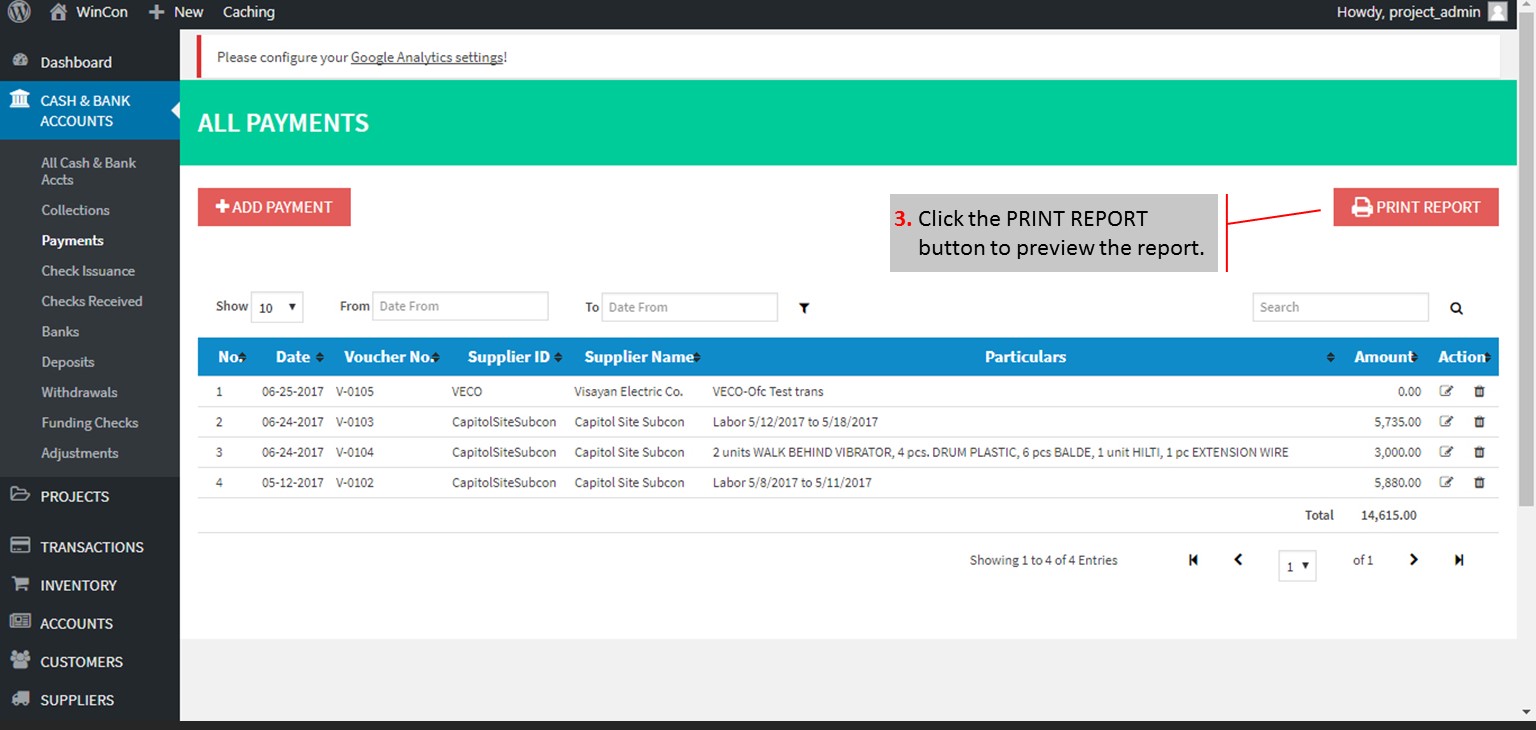
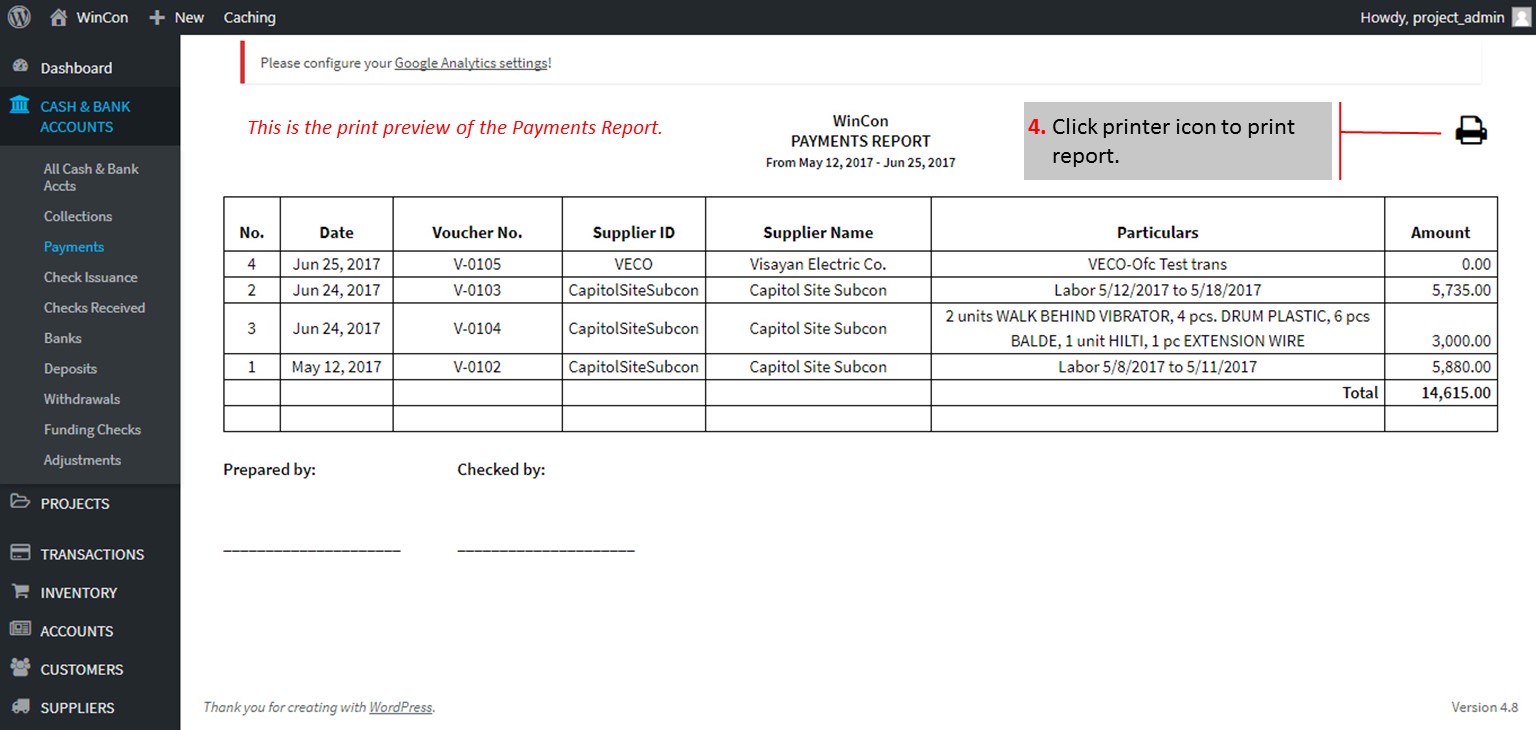
    How to Print Payment Reports

    Here’s the procedure on how to print payment reports: Click to zoom the slideshow.

    The columns in All Payments menu are sortable. Just click on the “sort” icon. Entries can also be searched using the search box on top.


    [/et_pb_tab] [/et_pb_tabs][/et_pb_column][et_pb_column type=”1_4″][/et_pb_column][/et_pb_row][/et_pb_section]