[et_pb_section bb_built=”1″ admin_label=”section” _builder_version=”3.0.49″ custom_padding=”10px|||”][et_pb_row admin_label=”row” background_position=”top_left” background_repeat=”repeat” background_size=”initial” _builder_version=”3.0.49″ background_position_1=”top_left” background_repeat_1=”no-repeat” background_position_2=”top_left” background_repeat_2=”no-repeat” custom_padding=”10px|||”][et_pb_column type=”3_4″][et_pb_post_title admin_label=”Post Title” _builder_version=”3.0.49″ title=”on” meta=”off” author=”on” date=”on” categories=”on” comments=”on” featured_image=”off” featured_placement=”below” parallax_method=”on” text_orientation=”left” text_color=”dark” text_background=”off” border_style=”solid” custom_margin=”40px|||” /][et_pb_tabs admin_label=”Tabs” _builder_version=”3.0.49″ inactive_tab_background_color=”#5f5f5f” border_style=”solid” active_tab_background_color=”#e35c59″ tab_font_size=”15″ tab_text_color=”#ffffff” tab_line_height=”2em”]
[et_pb_tab title=”How to Post Payments” use_background_color_gradient=”off” background_color_gradient_start=”#2b87da” background_color_gradient_end=”#29c4a9″ background_color_gradient_type=”linear” background_color_gradient_direction=”180deg” background_color_gradient_direction_radial=”center” background_color_gradient_start_position=”0%” background_color_gradient_end_position=”100%” parallax=”off” parallax_method=”on” background_size=”cover” background_position=”center” background_repeat=”no-repeat” background_blend=”normal” allow_player_pause=”off” tab_font_select=”default” tab_font=”||||” body_font_select=”default” body_font=”||||” body_line_height=”2em” body_line_height_tablet=”2em” body_line_height_phone=”2em”]
How to Post Payments
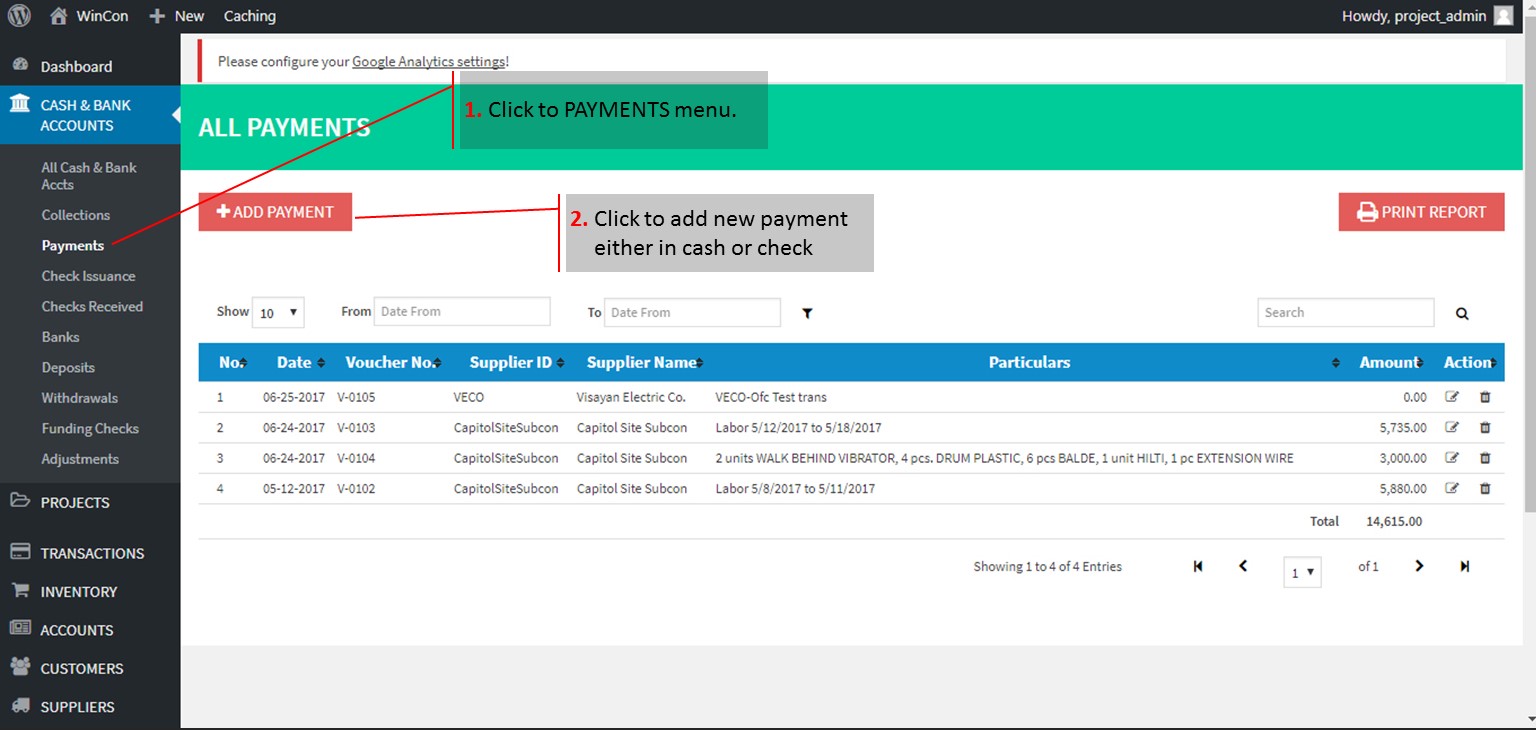
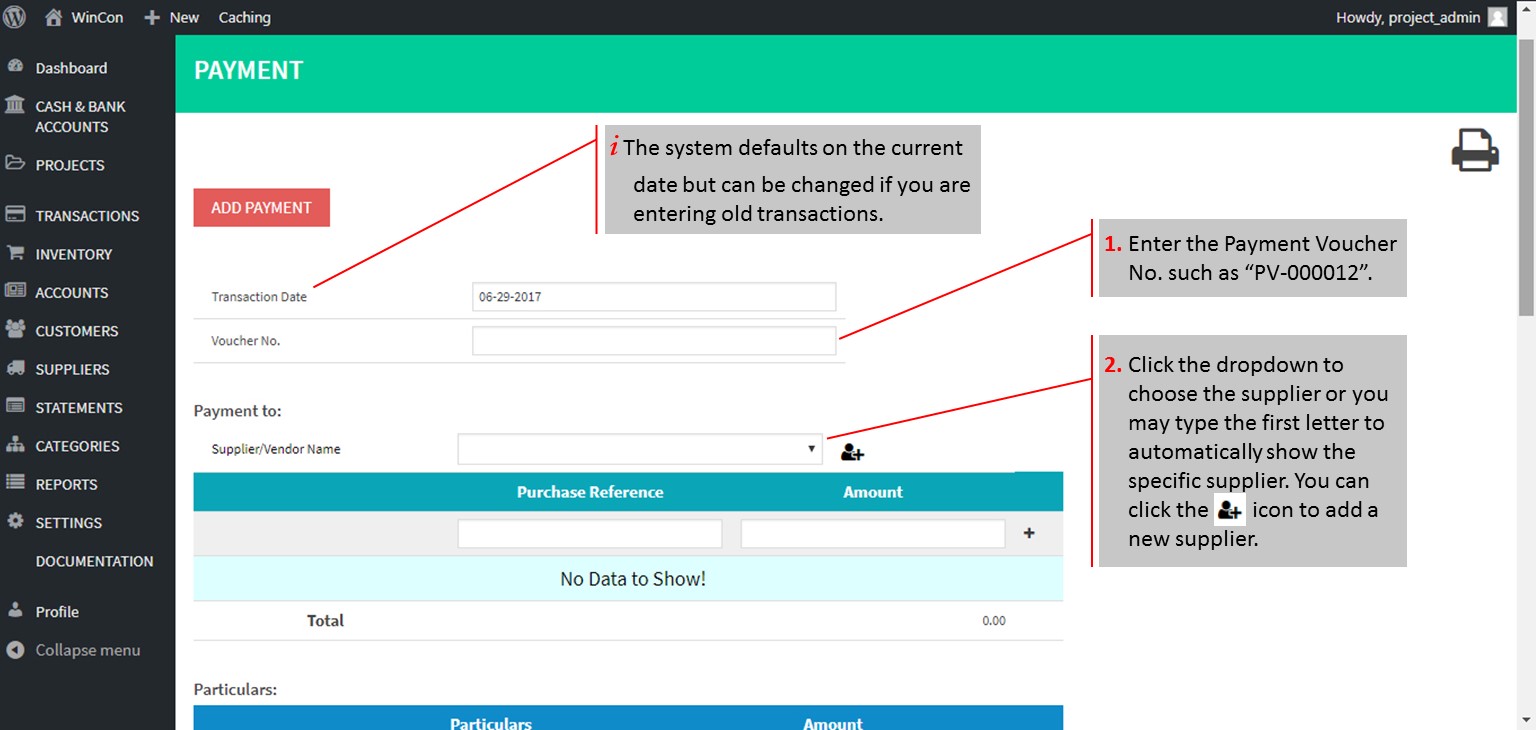
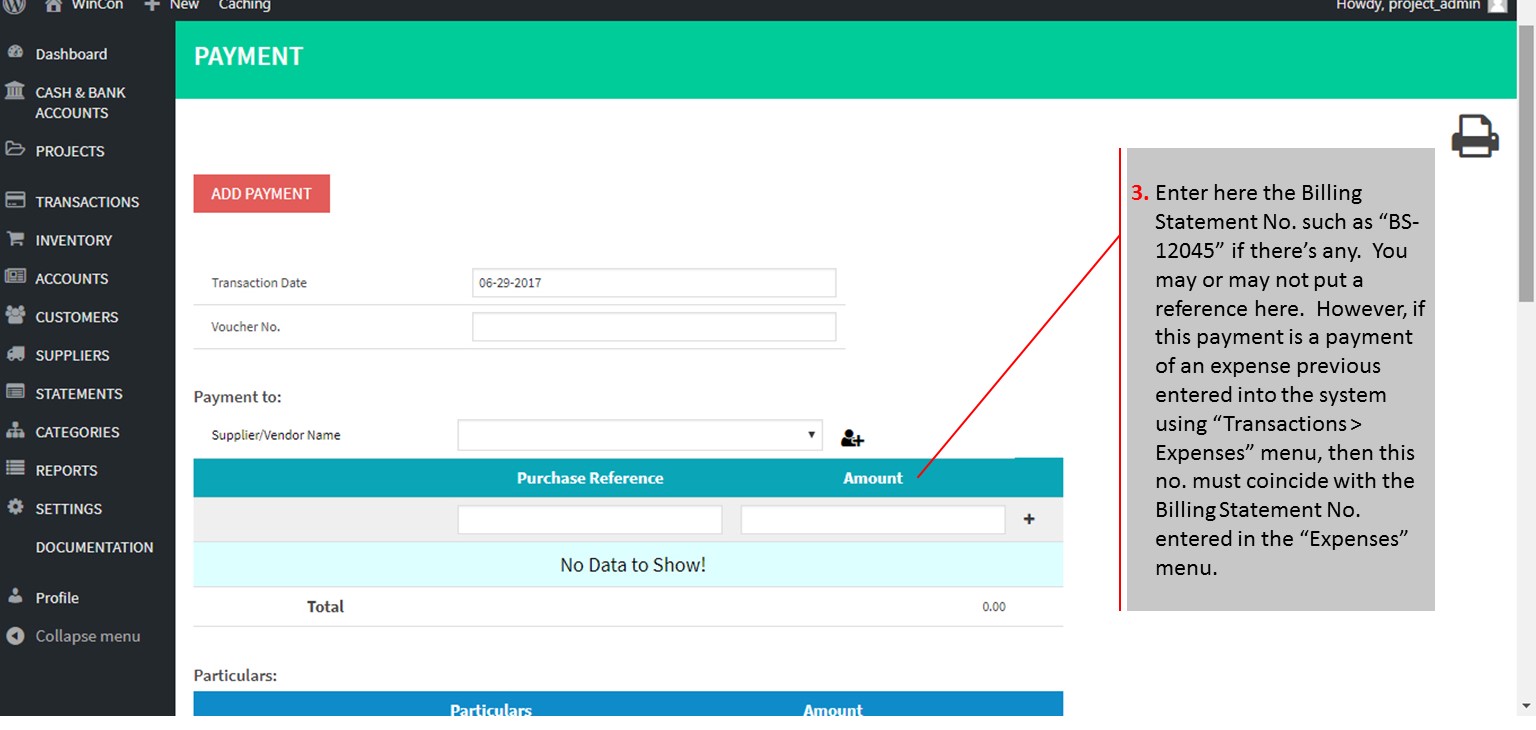
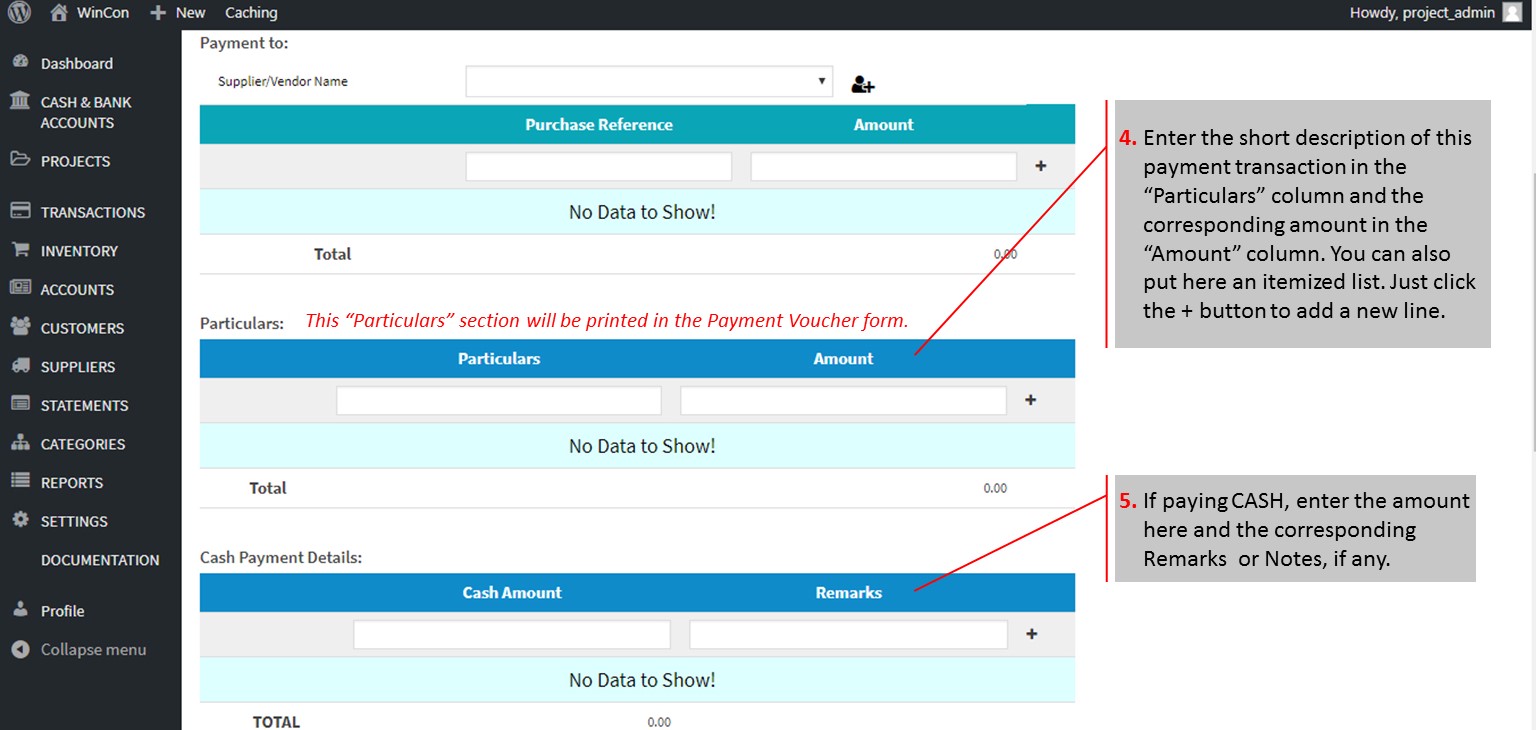
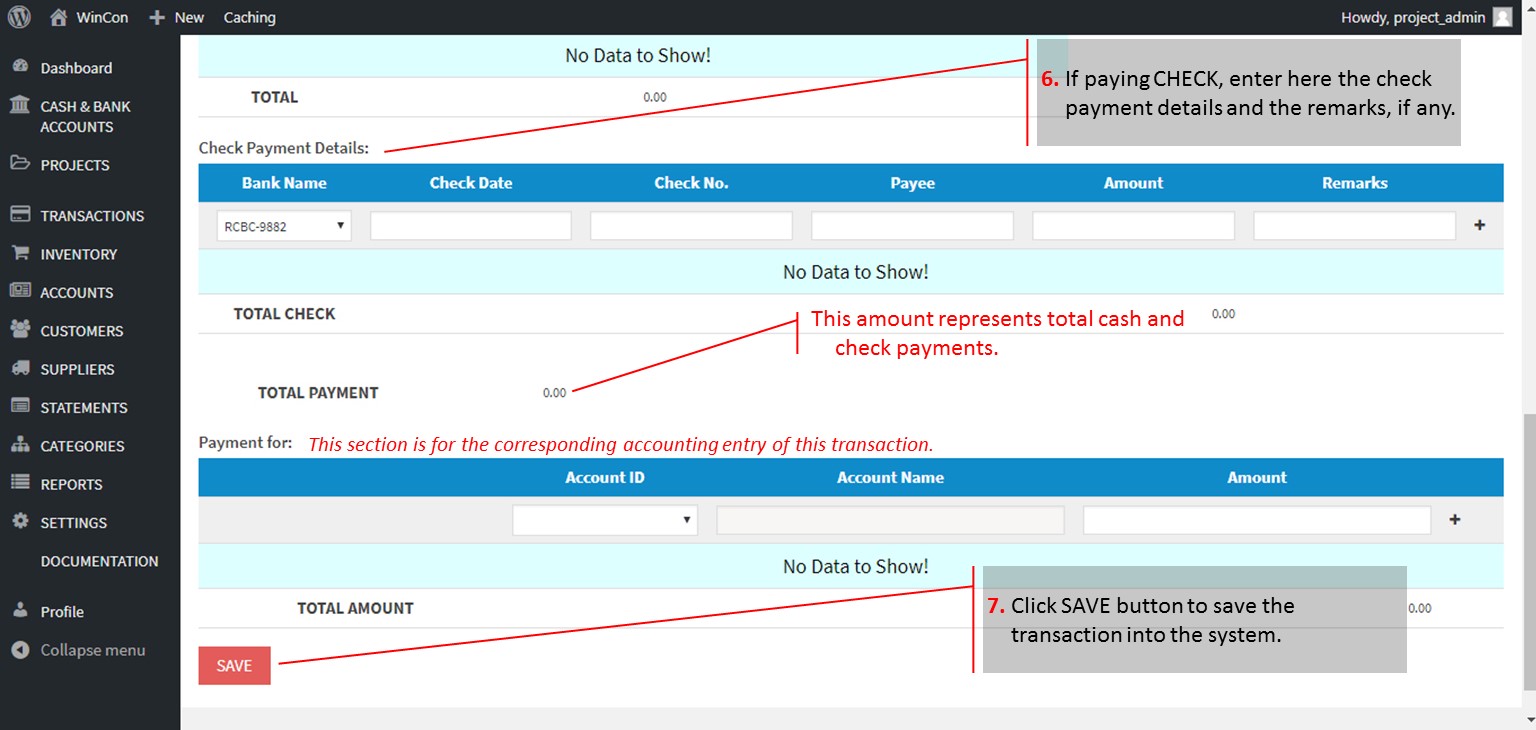
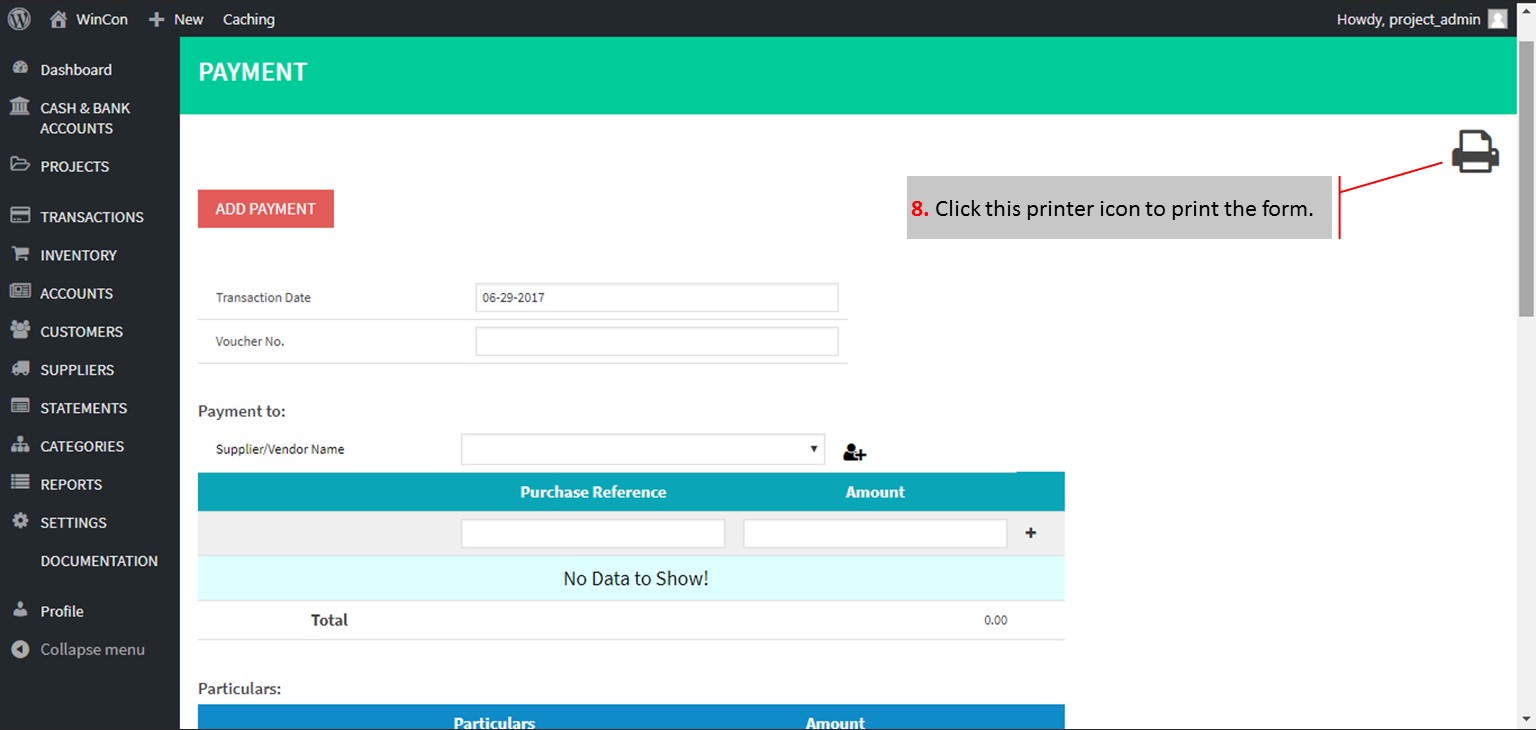
All payments must be done thru the PAYMENTS menu and it can be done in cash or in check. A Payment Voucher form can be printed once the transaction is saved.
Here’s the procedure on how to post payment into the system: Click to zoom the slideshow.
Check Payments entered in the Payment menu are directly posted in the Checks Issuance menu.
Download the sample
printable form of the Payment Voucher for printing. The sample form was set to match the print settings of the system. Put in the logo of your company, address and maybe some foooter content and have it printed with your printing press prenumbered.
[/et_pb_tab][et_pb_tab title=”How to Print Payment Reports” use_background_color_gradient=”off” background_color_gradient_start=”#2b87da” background_color_gradient_end=”#29c4a9″ background_color_gradient_type=”linear” background_color_gradient_direction=”180deg” background_color_gradient_direction_radial=”center” background_color_gradient_start_position=”0%” background_color_gradient_end_position=”100%” parallax=”off” parallax_method=”on” background_size=”cover” background_position=”center” background_repeat=”no-repeat” background_blend=”normal” allow_player_pause=”off” tab_font_select=”default” tab_font=”||||” body_font_select=”default” body_font=”||||” body_line_height=”2em” body_line_height_tablet=”2em” body_line_height_phone=”2em”]
How to Print Payment Reports
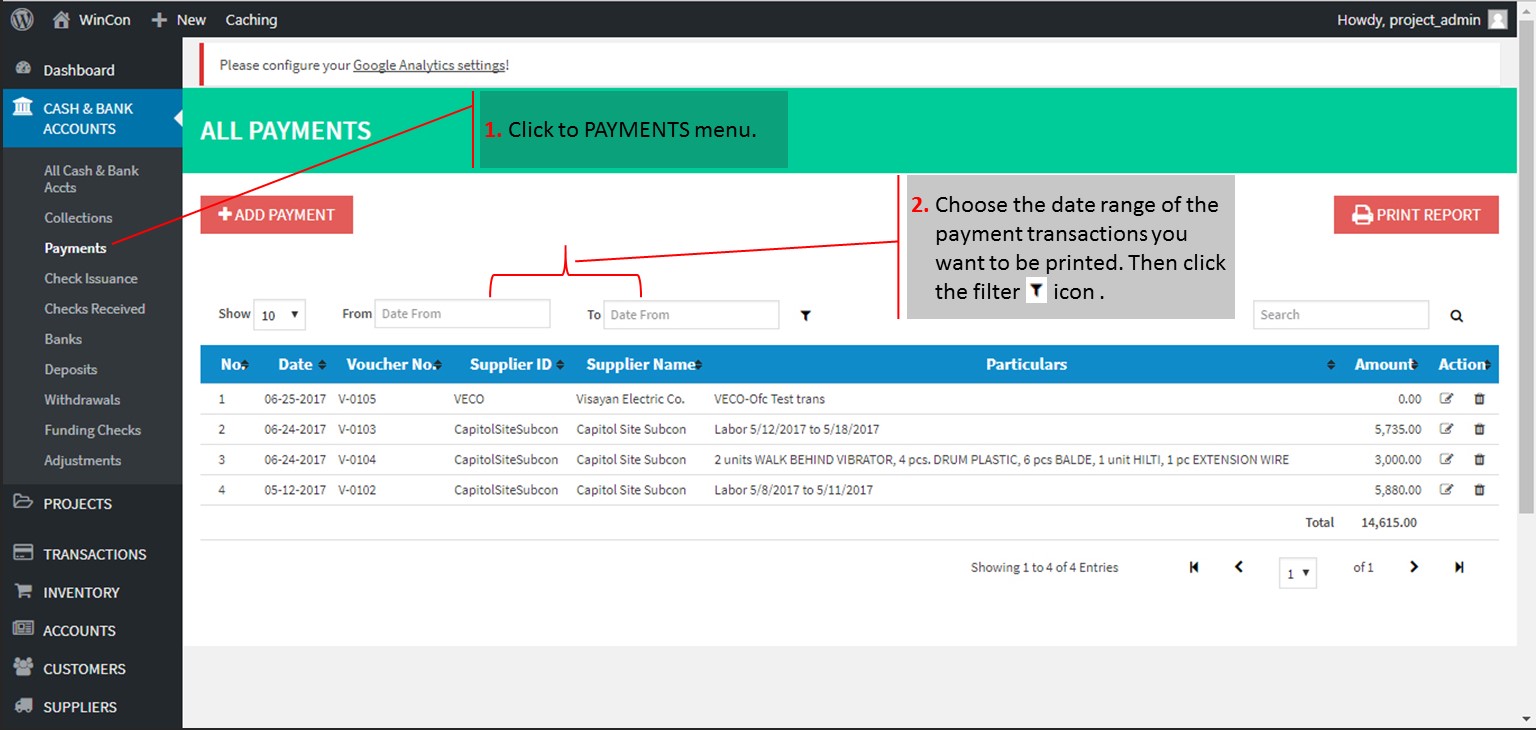
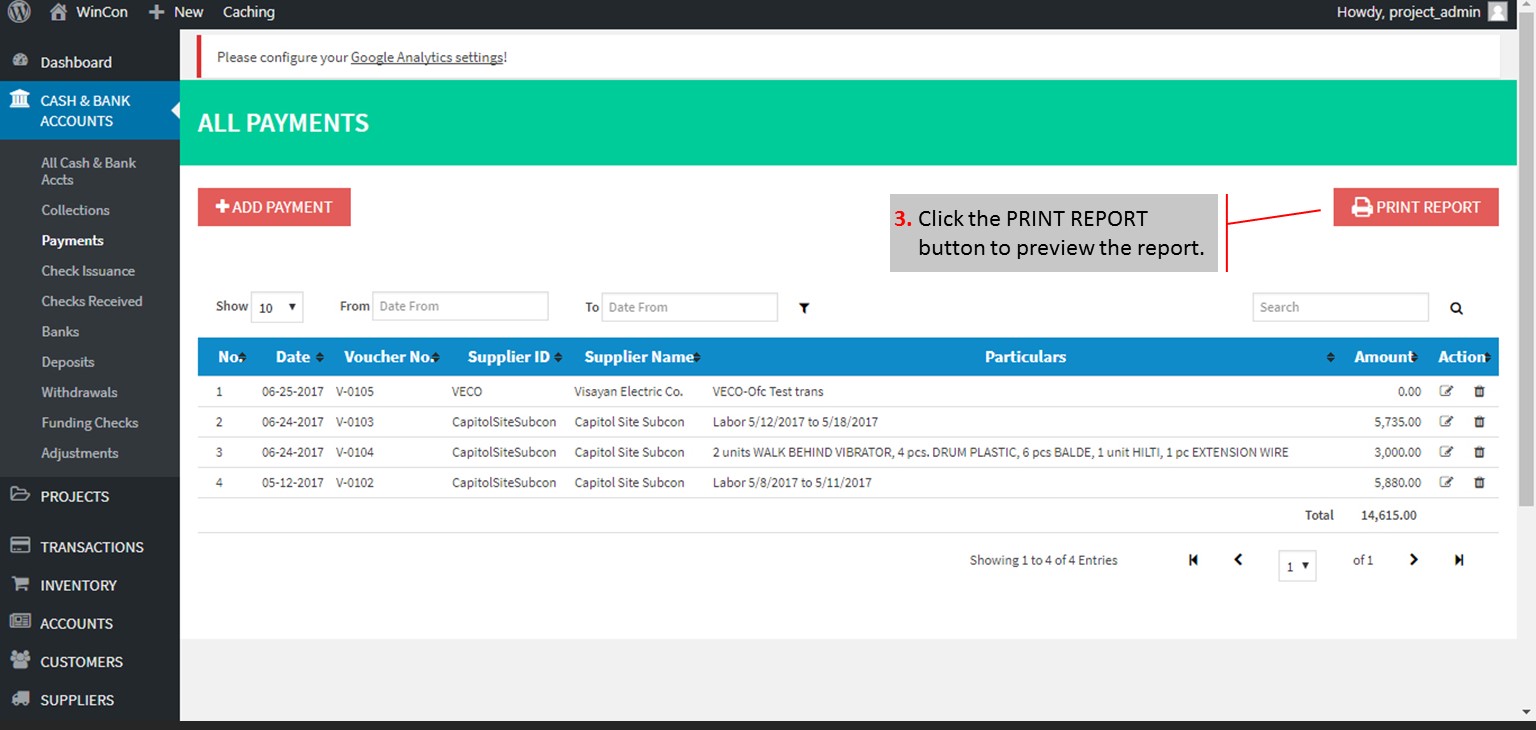
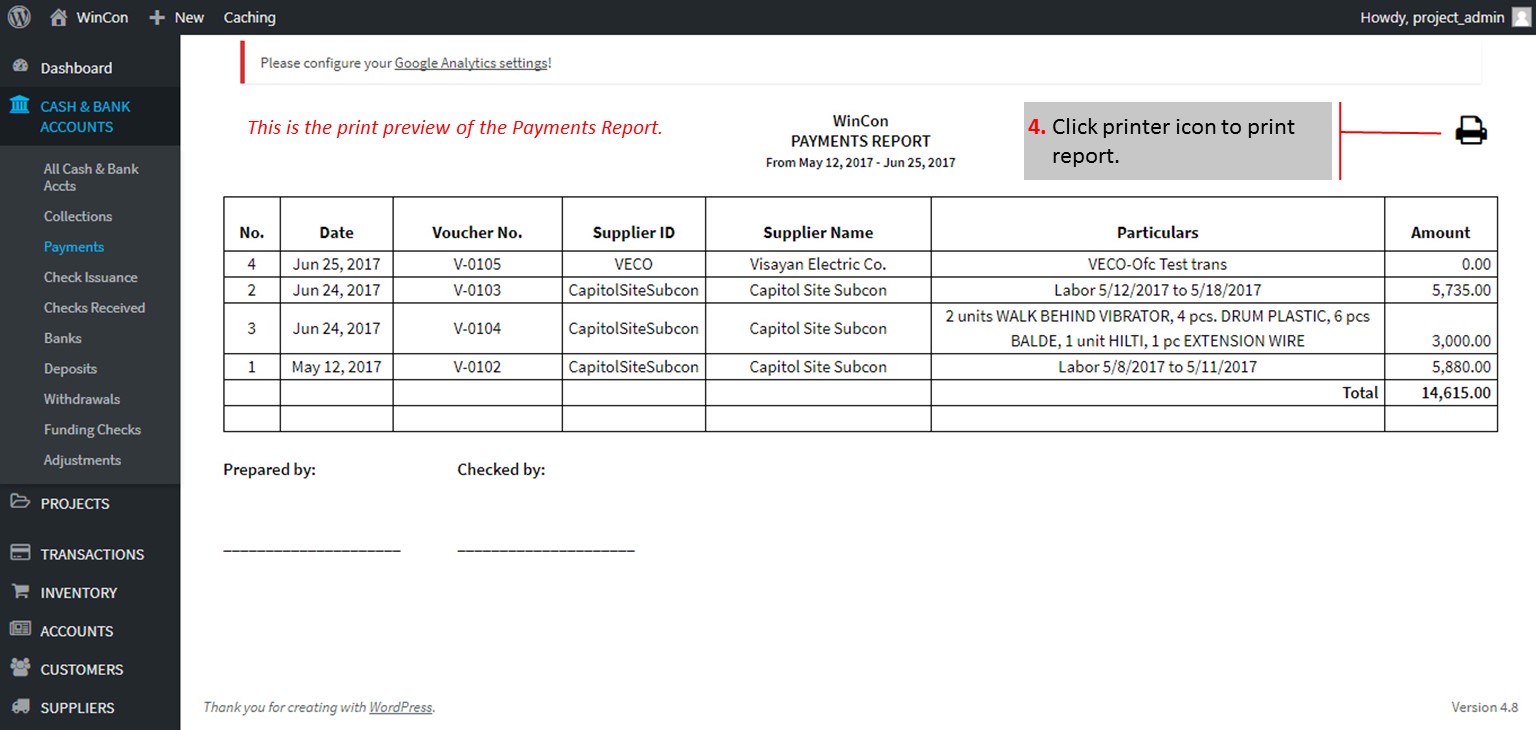
Here’s the procedure on how to print payment reports:
Click to zoom the slideshow.
The columns in All Payments menu are sortable. Just click on the “sort” icon. Entries can also be searched using the search box on top.
[/et_pb_tab]
[/et_pb_tabs][/et_pb_column][et_pb_column type=”1_4″][/et_pb_column][/et_pb_row][/et_pb_section]